1. Login to the VMware website and download the license file (.lic) from the account area.
2. Login to the vCenter Server or server running the FlexLM license service. If updating the licenses save the current license file in C:\program files\vmware\vmware license server\licenses\vmwarelicense.lic to a backup directory such as C:\program files\vmware\vmware license server\licenses-backup\
3. Put the new license file in C:\program files\vmware\vmware license server\licenses\

4. Open Flex License Manger (Start -->Programs --> VMWare --> VMWare License Server --> VMware License Server Tools)
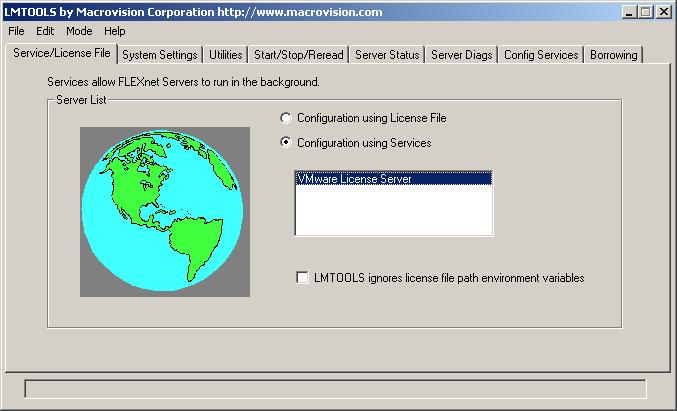
5. Select the "Start/Stop/Reread" tab.
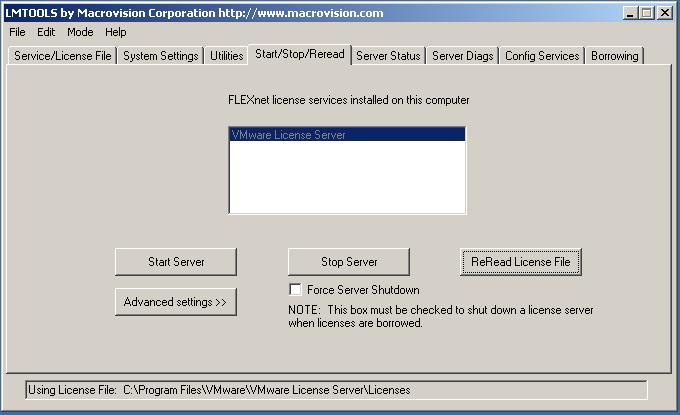
6. Click "Stop Server".
7. Click "Start Server".
8. Click "Reread License File".
9. You will see your license file information in the "Server Status" tab, review this for correctness.
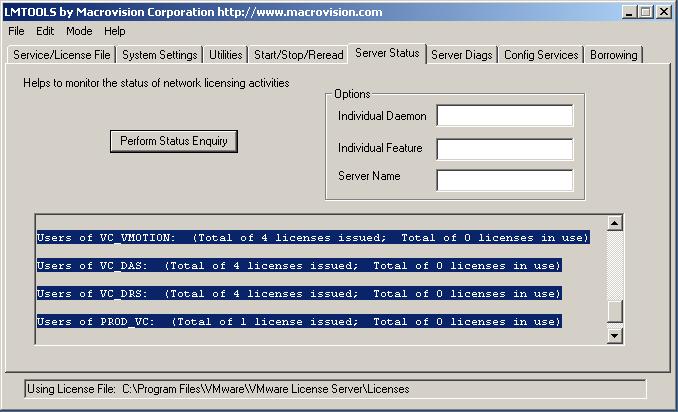
10. Restart the "VMWare License Server" service.
11. Restart the "VMWare Virtual Center Server" service.
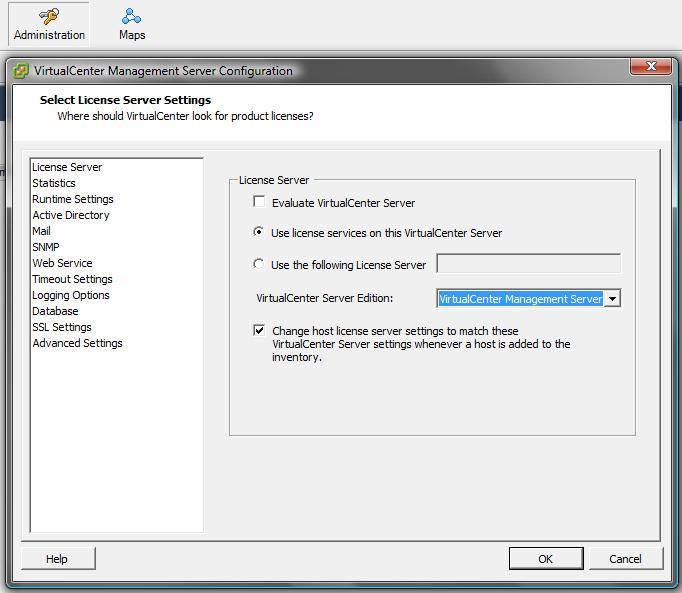
12. Log into Virtual Center with VI client. Go to Administration --> VirtualCenter Management Server Configuration. Untick "Evaluate VirtualCenter Server". Set the location of your license server and if you want these setting to apply to all ESX hosts. Click "OK".
13. Click on the "Admin" button and go to the "Licensing" tab.
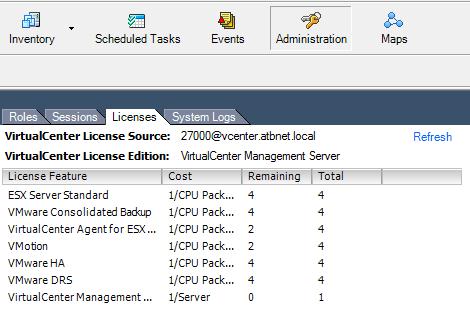
14. Refresh the page. The new licenses will now be shown.