If you are not using vCenter or only want to give a specific person access to an ESX server to do a specific task then here is how to do it...
First connect to the ESX server with VI client (it will need to have full admin right e.g. root).
If you want the user to only do certain tasks then we first need to create a role.
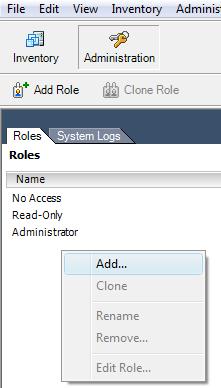
The roles can be found under the "Administration" button and the "Roles" tab.
To add a new role, right click and select "Add..."
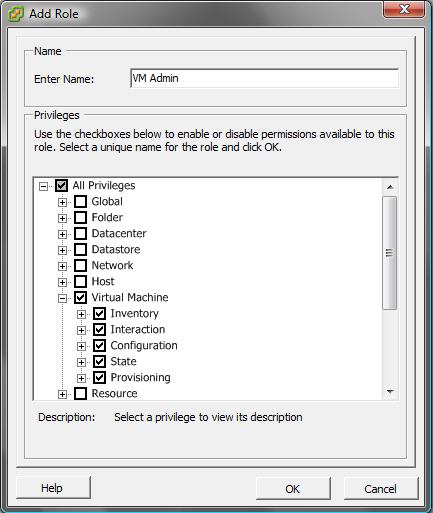
Give the role a name (in this case "VM Admin" because it will have all permissions to the VMs). Select the permissions and click "Ok".
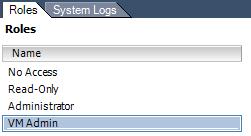
Now you can see your new role with the default roles.
Next is to create a user that can carry our this role.
Click on the ESX server in the inventory and navigate to the "User & Groups" tab.
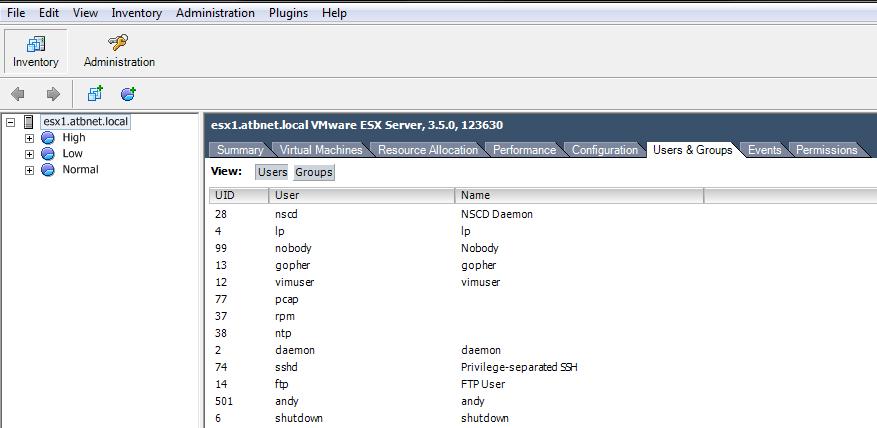
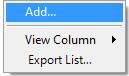
Right click in the users list and select "Add..."
Give the user a name (e.g. bob) and a password. Click "Ok".
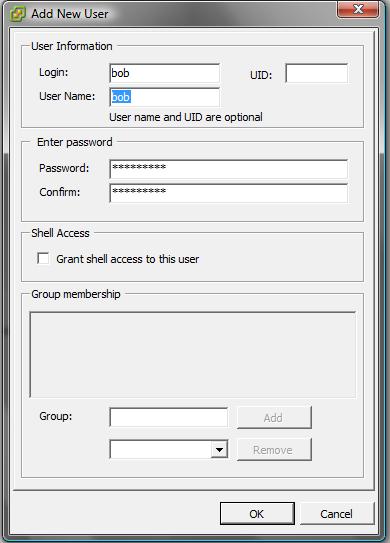
The user will now appear in the list of users.

The next step is to give the user a role. This is done under the "Permissions" tab.
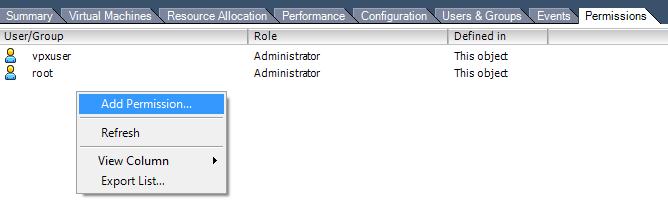
Right click in the permissions list and select "Add Permission...".
Notice the vpxuser in the list below, this is because this ESX server I am doing this on is connected to a vCenter server. The "vpxuser" is created and given the Administrator role when you connect the ESX server to vCenter.
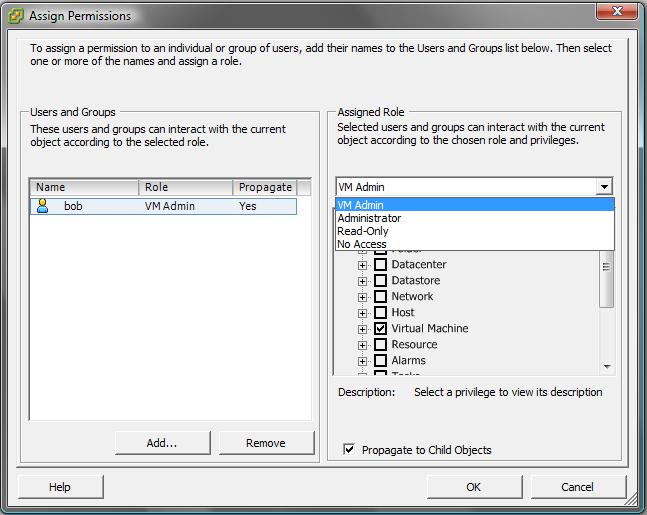
Add the user "bob" and assign a role (e.g. VM Admin that we created).
Choose to propogate the permissions to child objects.
Click "Ok".
The new permission can now be seen in the list of permissions, and is effective immediatley.
