vSphere PowerCLI is a command-line and scripting tool built on Windows PowerShell, and provides more than 200 cmdlets for managing and automating vSphere.
Requirements
To use vSphere PowerCLI, you need:
To use vSphere PowerCLI, you need:
-
.NET 2.0 Service Pack 1
-
Windows PowerShell 1.0 or Windows PowerShell 2.0 Release To Manufacture (RTM).
-
If .NET 2.0 is installed without Service Pack 1, some operations might take long to complete.
Supported Platforms
vSphere PowerCLI 4.0 Update 1 works on the 32-bit and 64-bit versions of the following operating systems:
vSphere PowerCLI 4.0 Update 1 works on the 32-bit and 64-bit versions of the following operating systems:
-
Windows Vista
-
Windows XP Service Pack 2
-
Windows Server 2003
vSphere PowerCLI 4.0 Update 1 supports the following VMware environments
-
VMware ESX Server 3.5
-
VMware ESX Server 3i
-
VMware VirtualCenter 2.5
-
VMware ESX 3.0 and VirtualCenter 2.0
-
VMware ESX 4.0 and vCenter 4.0
-
VMware ESX 4.0 Update 1 and vCenter 4.0 Update 1
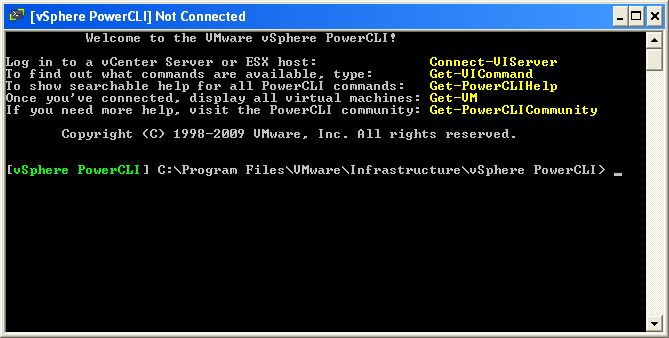
Run the following (In Bold):
Set-ExecutionPolicy RemoteSigned
Connect-VIServer
cmdlet Connect-VIServer at command pipeline position 1
Supply values for the following parameters:
Server[0]: vc1.vmadmin.local
Server[1]:
WARNING: There were one or more problems with the server certificate:
Supply values for the following parameters:
Server[0]: vc1.vmadmin.local
Server[1]:
WARNING: There were one or more problems with the server certificate:
* The X509 chain could not be built up to the root certificate.
Name Port User
---- ---- ----
vc1.vmadmin.local 443 VMADMIN\administrator
Example (Get All VMs):
Get-VM
Name PowerState Num CPUs Memory (MB)
---- ---------- -------- -----------
DC1 PoweredOn 1 512
VC1 PoweredOn 1 4096
---- ---------- -------- -----------
DC1 PoweredOn 1 512
VC1 PoweredOn 1 4096
Share this blog post on social media:
Tweet


Latest Blog Posts
- vSphere 7 U1 - Part 3 - Creating a Datacenter, HA/DRS Cluster and Adding a Host
- vSphere 7 U1 - Part 2 - Deploying vCenter 7.0 U1 VCSA
- vSphere 7 U1 - Part 1 - Installing ESXi 7.0 U1
- Veeam CBT Data is Invalid - Reset CBT Without Powering Off VM
- View Administrator Blank Error Dialog/Window After Upgrade