VMware View Composer 2 is a component of View 4 Premier Edition.
For an overview of the components of VMware View see VMware View 4 - Intro and Components.
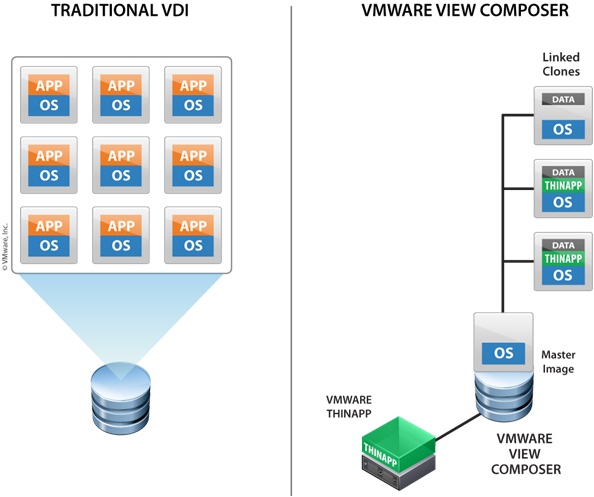
Composer offers features such as storage reduction, improved OS management and rapid desktop deployment.
VMware View Composer uses linked clones to provide a 50% to 90% reduction in storage requirements for virtual desktops. If View Composer is not used 100's or 1,000's of desktops 20GB+ in size would fill up expensive SAN storage.
Composer does this by using creating linked clones from a parent disk, instead of full clones. This creates what is known as a "diff disk" of the differences between the parent disk and itself. Without the parent disk the linked clones will not work.
For additional information on View Composer see VMware View Composer Whitepaper.
VMware View Composer is downloaded as a seperate component with View 4. Composer must be installed on the vCenter Server.
1. Double Click "VMware-viewcomposer-2.0.0-210930.exe" to start the installer.
2. You may receive a message about updating Microsoft .NET depending on which version you have installed. Click Ok to update .NET.

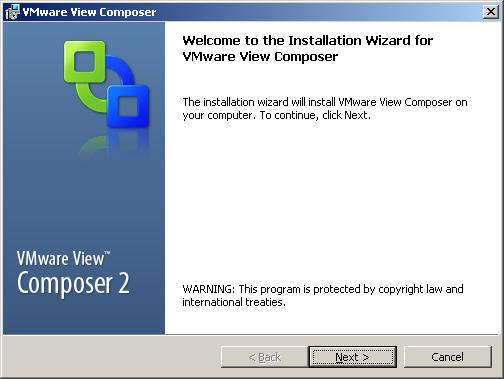
3. After updating .NET (if it was required) the installation wizard is displayed. Click Next.
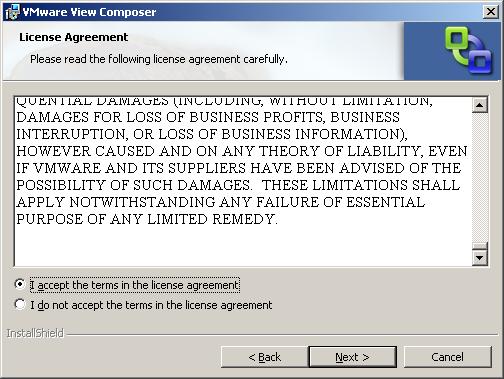
4. Read and Accept the license agreement, Click Next.
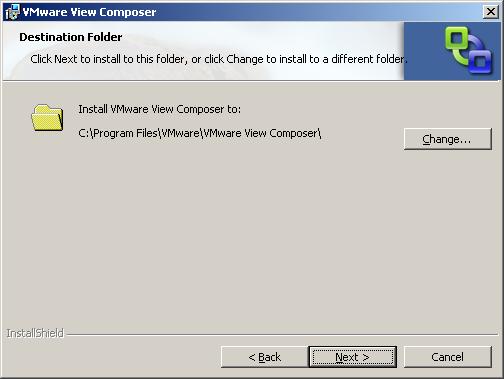
5. Enter the destination folder to install VMware View Composer. Click Next.
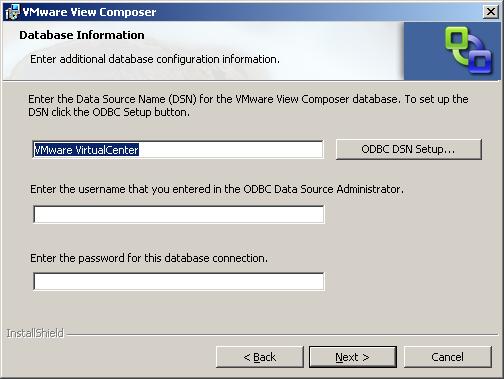
6. VMware View Composer requires a MS SQL database.
The existing vCenter database can be used, however ideally its own database.
Enter the required details and Click Next.
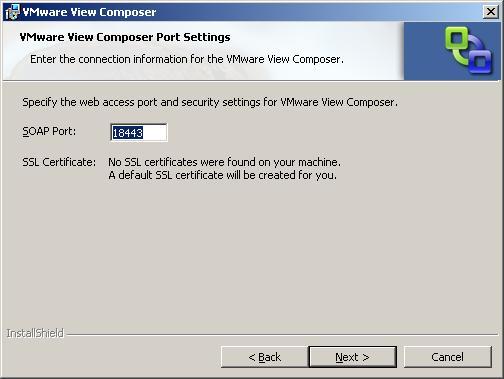
7. Confirm the SOAP port to use and note the SSL certificate being created.
Click Next.
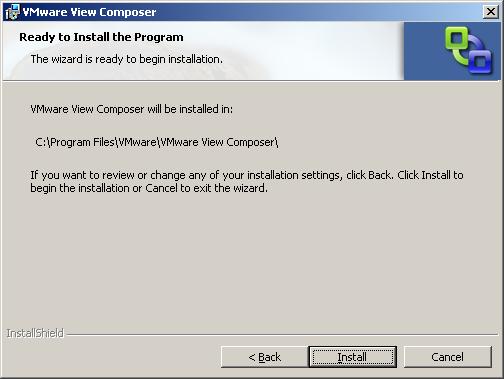
8. Click Install to start the installation of Composer.
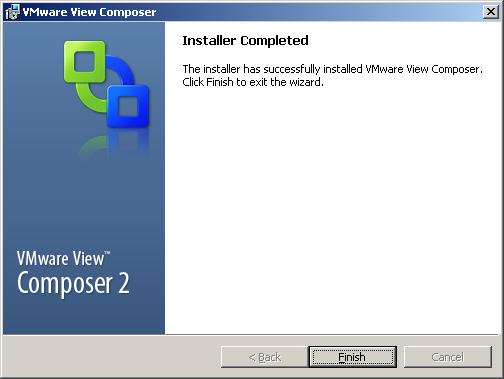
9. Once the installation has completed Click Finish.
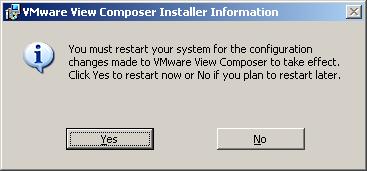
10. It is required to restart the server to complete the installation. Click Yes to Restart.
NOTE: This is your vCenter Server so check its not in use or schedule downtime for a restart if required.
For an overview of the components of VMware View see VMware View 4 - Intro and Components.
How To Series: VMware View Installation, Configuration and Management
Part 1 - Installing VMware View Composer 2
Part 2 - Installing VMware View Connection Server 4
Part 3 - Configuring VMware View Connection Server 4 with View Manager
Part 4 - Creating a Master Image for VMware View Desktop Deployment
Part 5 - Provisioning an Individual Desktop with View Manager
Part 6 - VMware View 4 - Windows 7 Deployment Guide
Part 7 - Creating an Automated Desktop Pool
Share this blog post on social media:
Tweet


Latest Blog Posts
- vSphere 7 U1 - Part 3 - Creating a Datacenter, HA/DRS Cluster and Adding a Host
- vSphere 7 U1 - Part 2 - Deploying vCenter 7.0 U1 VCSA
- vSphere 7 U1 - Part 1 - Installing ESXi 7.0 U1
- Veeam CBT Data is Invalid - Reset CBT Without Powering Off VM
- View Administrator Blank Error Dialog/Window After Upgrade