A license server must be accessible to all servers in the farm for Presenation Server (XenApp) to work properly.
REQUIREMENTS
Operating Systems:
Window Server 2003 with SP1 or SP2
Windows Server 2003 Release 2
Windows Server 2000 with SP3
Web Server:
IIS version 5.0 or 6.0 with SP2
Netscape 7.1 or 7.2
Apache HTTP Server 2.0.52
Java:
Java Runtime Environment (JRE) 1.5.0_09
Install IIS 6.0
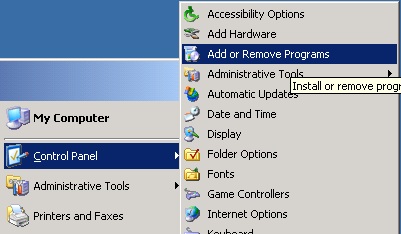
1. Start --> Control Panel --> Add or Remove Programs.
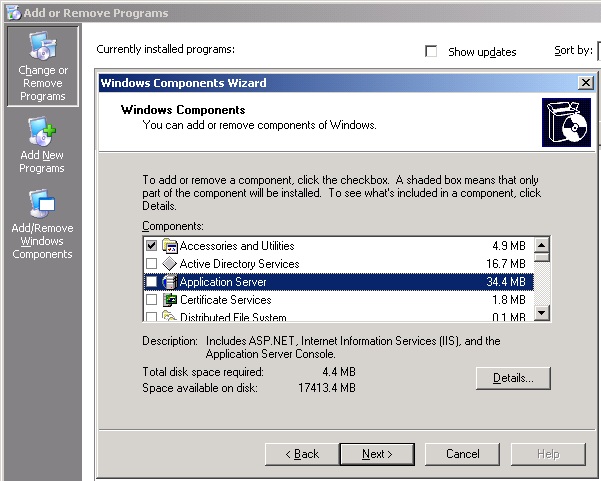
2. Select "Application Server" and Click "Details".
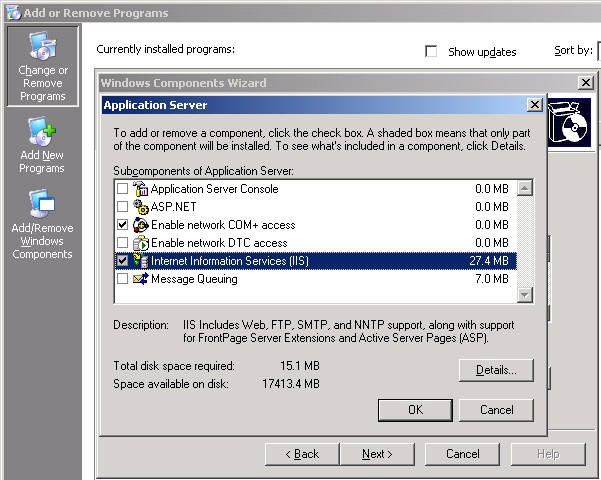
3. Tick "Internet Information Services (IIS)" and Click "Ok".
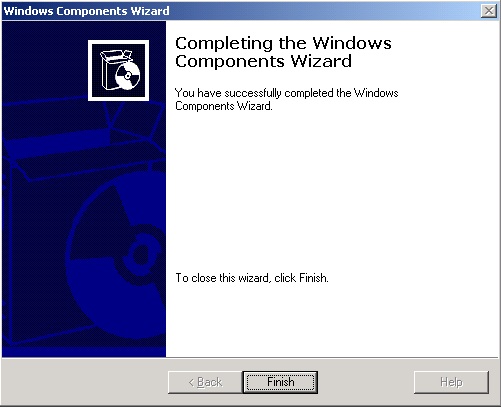
4. IIS will be installed, when completed Click Finish.
5. Insert the Citrix Presenation Server 4.5 CDRom. Click "Product Installations and Updates".
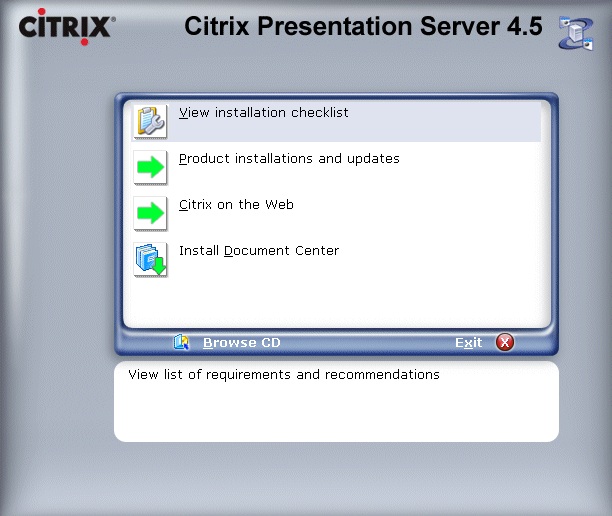
6. Click "Install Citrix Licensing".
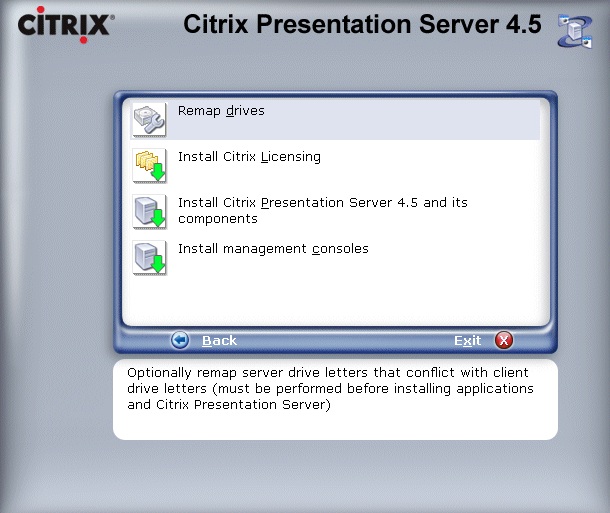
7. Read and Accept the license agreement. Click Next.
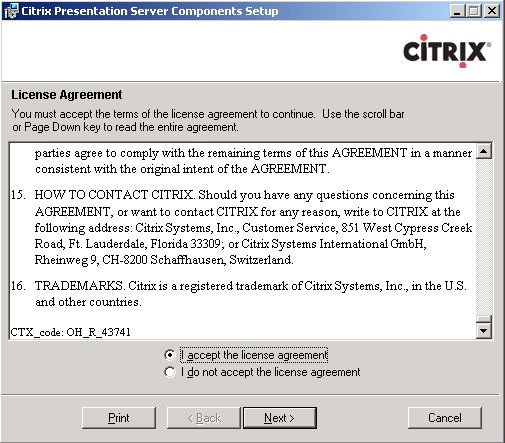
8. Review the installtion prerequisites, Click Next.
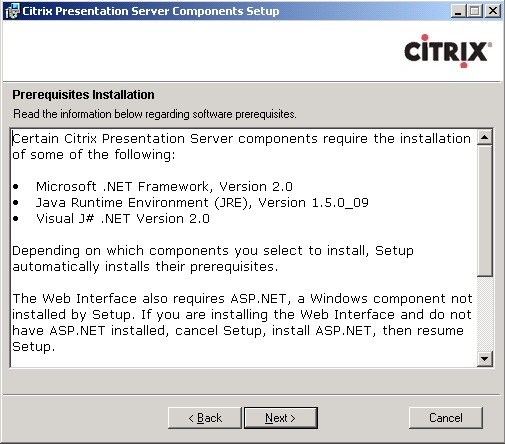
9. The prerequisites are installed.
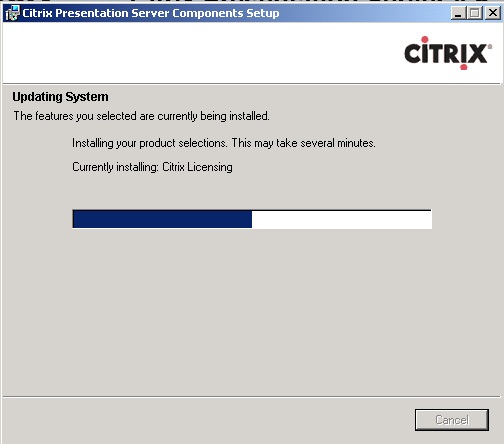
10. Click Next.
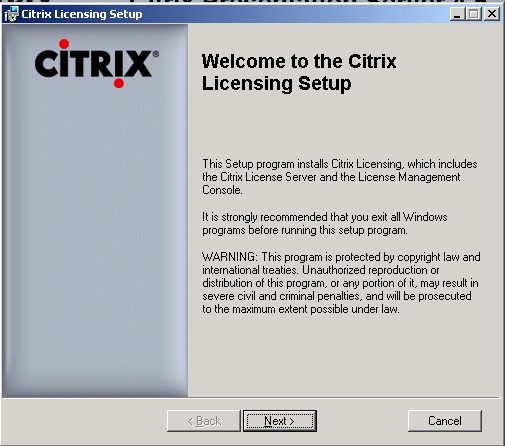
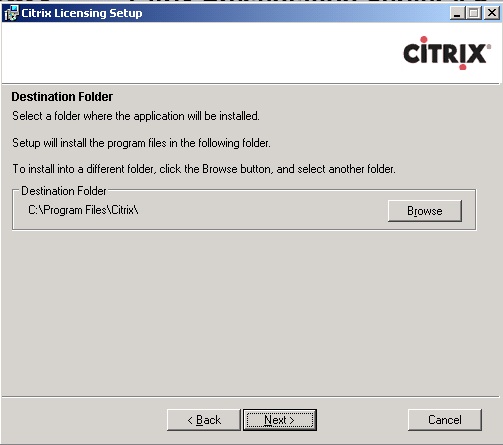
11. Choose a destination for the installation, Click Next.
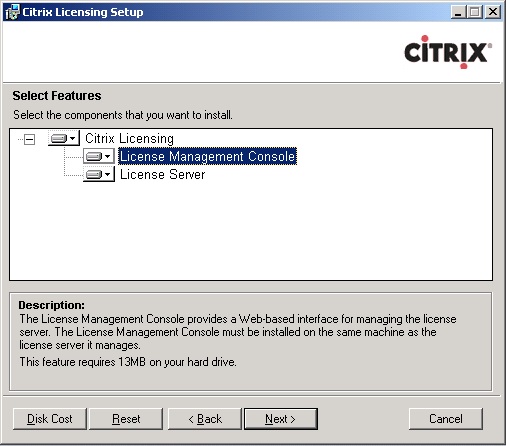
12. Choose both the "License Server" and "License Management Console". Click Next.
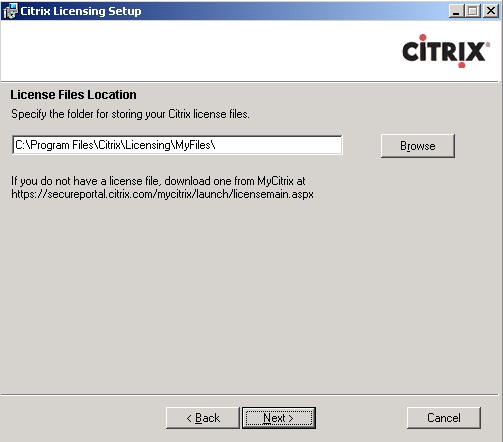
13. Specify the license file location. Click Next.
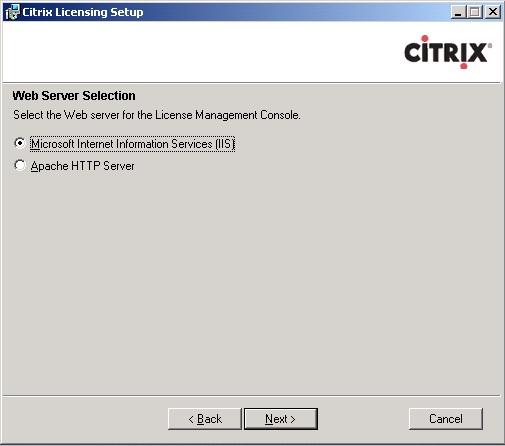
14. Choose IIS. Click Next.
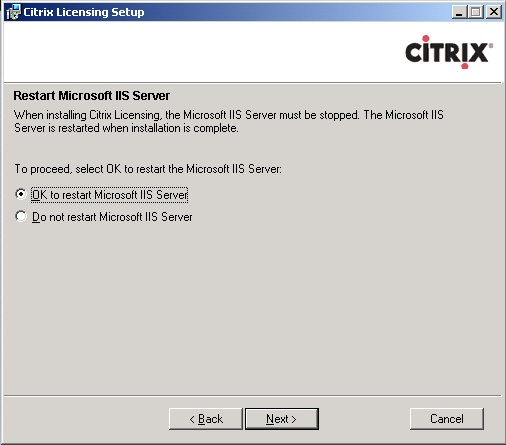
15. Select Ok to restart IIS. Click Next.
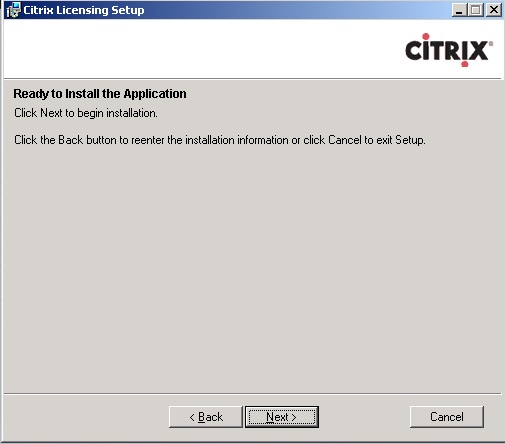
16. Click Next to beign installation.
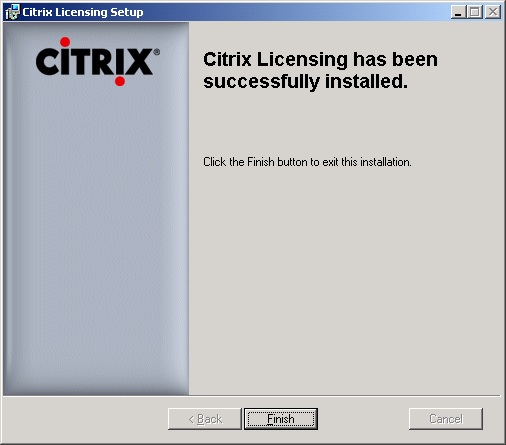
17. Citix Licensing installed sucessfully. Click Finish.
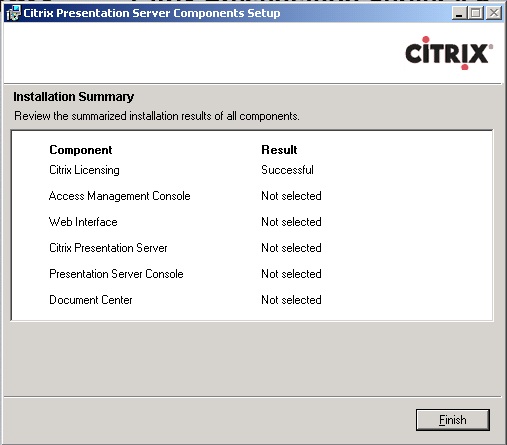
18. Review the installation summary. Click Finish.
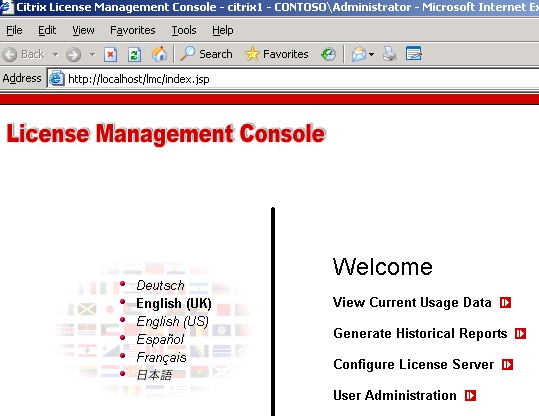
19. Check the license managment console (Start --> All Programs --> Citix --> Management Consoles --> License Management Console).
Share this blog post on social media:
Tweet


Latest Blog Posts
- vSphere 7 U1 - Part 3 - Creating a Datacenter, HA/DRS Cluster and Adding a Host
- vSphere 7 U1 - Part 2 - Deploying vCenter 7.0 U1 VCSA
- vSphere 7 U1 - Part 1 - Installing ESXi 7.0 U1
- Veeam CBT Data is Invalid - Reset CBT Without Powering Off VM
- View Administrator Blank Error Dialog/Window After Upgrade