Following on from vCenter CapacityIQ - Part 2 - Dashboard, Views and Reports we will review What-If Scenarios.
These scenarios are used to model changes in virtual resources specifically hosts and virtual machines.
You can create scenarios based on the following criteria:
Hosts
-
Adding a host
-
Changing host capacity
-
Removing a host
Virtual Machines
-
Adding a virtual machine based on custom settings
-
Adding a virtual machine based on an existing virtual machine profile
-
Removing virtual machines
1. Creating a What-If Scenario
To create a What-If Scenario, Select the cluster object and Click "What-If Scenario".

2. What-If Scenario Type
The scenario wizard will start.
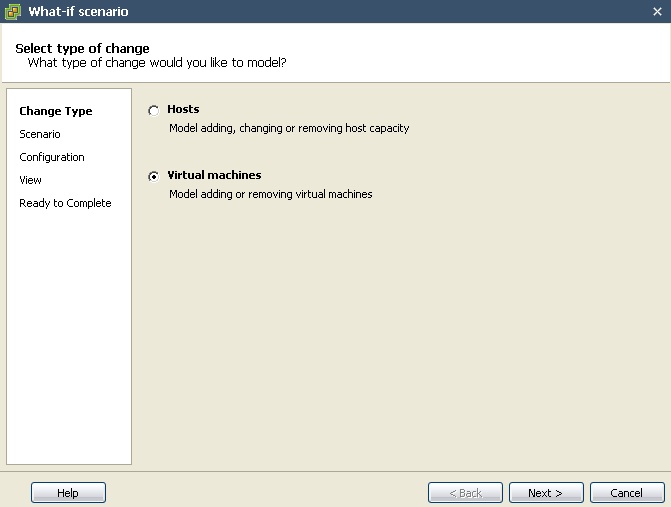
In this example we will model adding virtual machines.
Select "Virtual Machines" and Click Next.
3. Choose the scenario
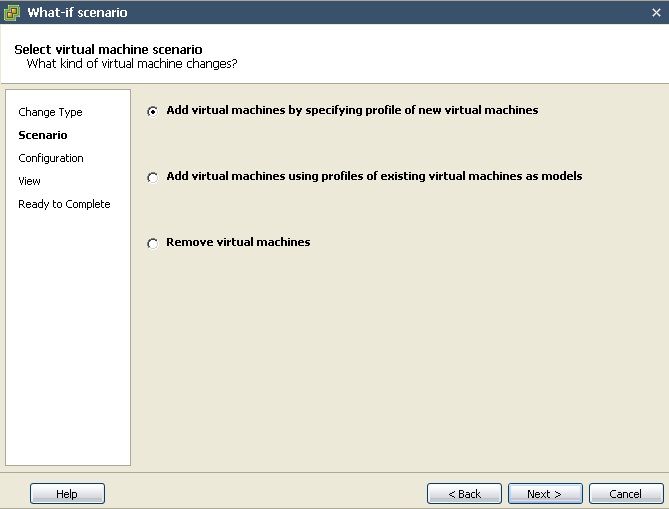
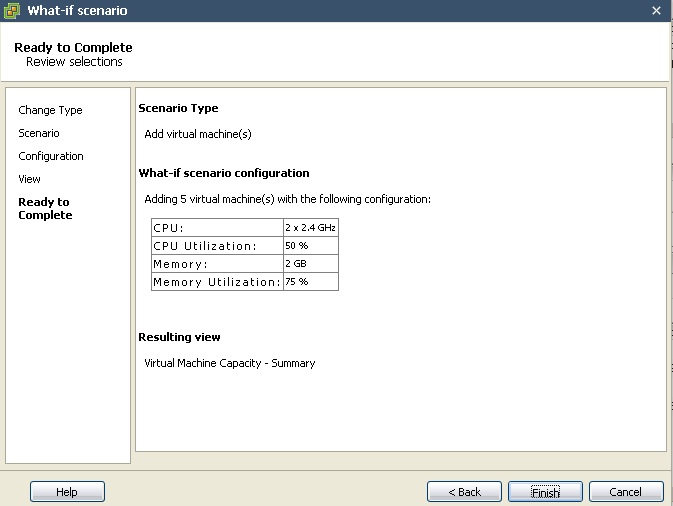
We will create a scenario by adding 5 virtual machines to the cluster based on a specification we provide.
Select "Add virtual machines by specifying profile of new virtual machines".
Click Next.
4. Configuration
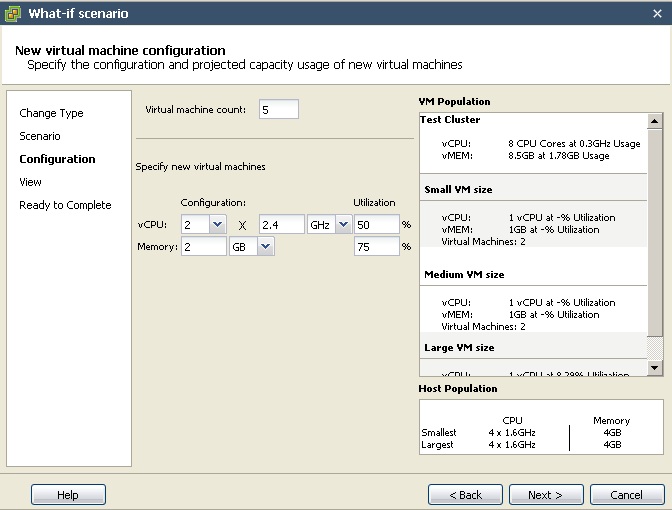
Specify the amount of virtual machines that will be added.
Specify the configuration of the virtual machines:
-
Number of vCPUs
-
Clock speed of vCPUs
-
CPU utilisation
-
Amount of memory
-
Memory utilisation
Click Next.
5. View (Trend / Summary)
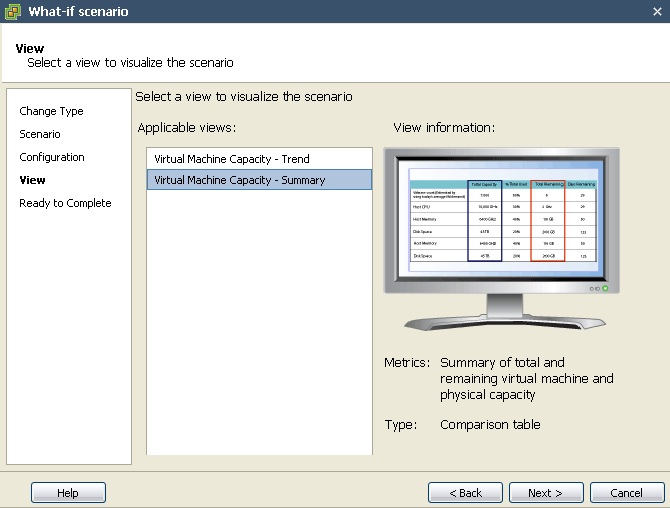
Select how you would like to view the scenario results.
-
Trend (Graphical)
-
Summary (Comparison table)
Click Next.
6. Review scenario
Check the scenario settings are correct and Click Finish to see the results view.
7. Review the What-If scenario results
The results view will be displayed in a comparison table.
Because we modelled adding 5 VMs were most intrested in the "Remaining" part of the table.
This shows us based on our current host capacity we will be short of 6.09 GHz or CPU and 5.44GB of memory.
So we will be unable to add these 5 vitual machines without resource contention.
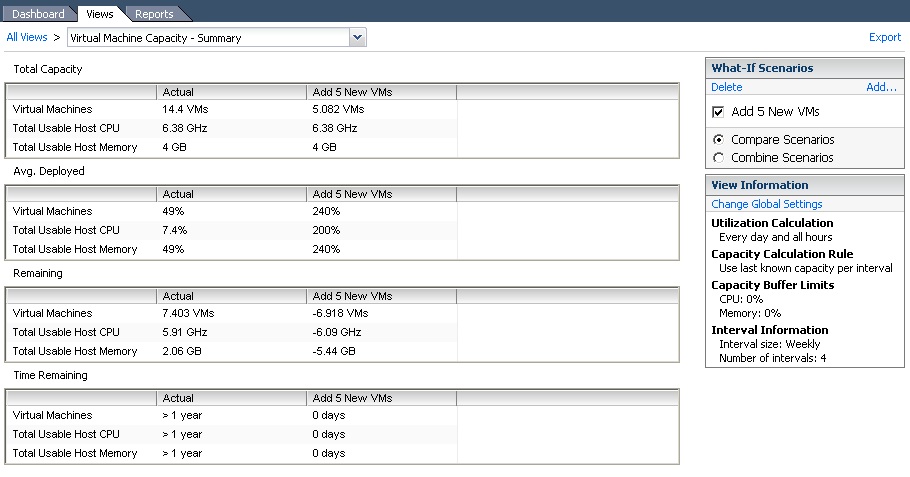
With these results, you can export the information to PDF and discuss with management you need additional memory or hosts to acheive this requirement.
CapacityIQ is very easy to use and for a 1.0 product is quite useful. While there are several additional features I would like to see, such as custom views/reports, scheduled reports, automated emails and alerts about capacity, i'm sure they will come with time as Capacity IQ evolves.
vCenter CapacityIQ - Part 1 - Installing
vCenter CapacityIQ - Part 2 - Dashboard, Views and Reports
vCenter CapacityIQ - Part 3 - What-If Scenario
Share this blog post on social media:
Tweet


Latest Blog Posts
- vSphere 7 U1 - Part 3 - Creating a Datacenter, HA/DRS Cluster and Adding a Host
- vSphere 7 U1 - Part 2 - Deploying vCenter 7.0 U1 VCSA
- vSphere 7 U1 - Part 1 - Installing ESXi 7.0 U1
- Veeam CBT Data is Invalid - Reset CBT Without Powering Off VM
- View Administrator Blank Error Dialog/Window After Upgrade