This guide will take you through the process of installing Windows Server 2008.
First check out the Windows Server 2008 System Requirements.
1. Insert the DVD media into the physical server or attach the ISO image to a VM and boot it.
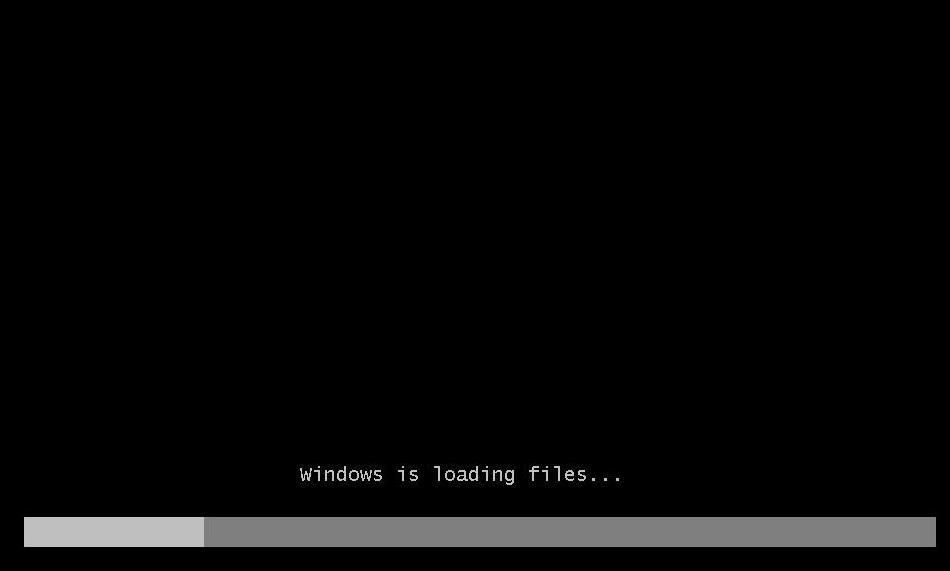
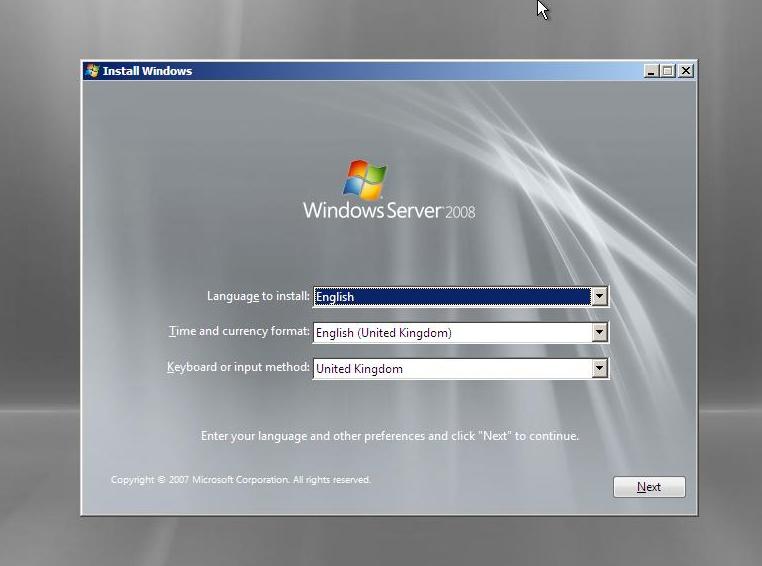
2. Choose your language, time zone and keyboard layout. Click Next.
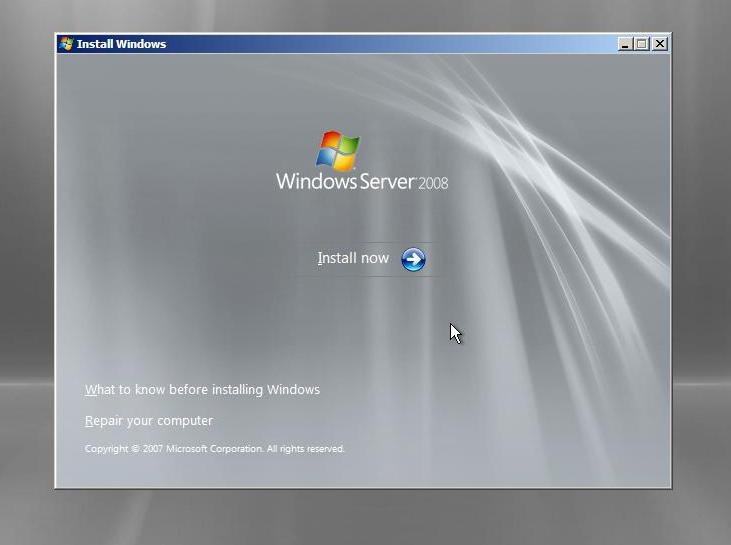
3. Click Install Now.
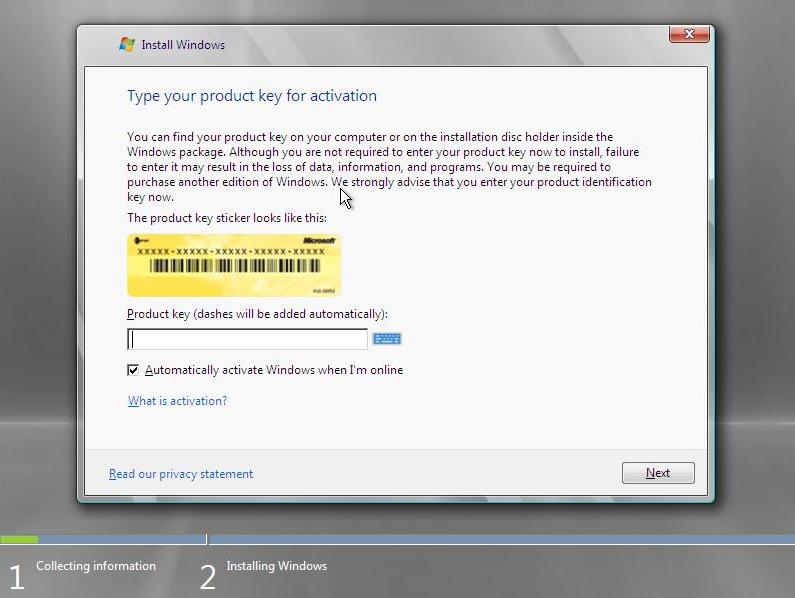
4. Enter your product license key. Click Next.
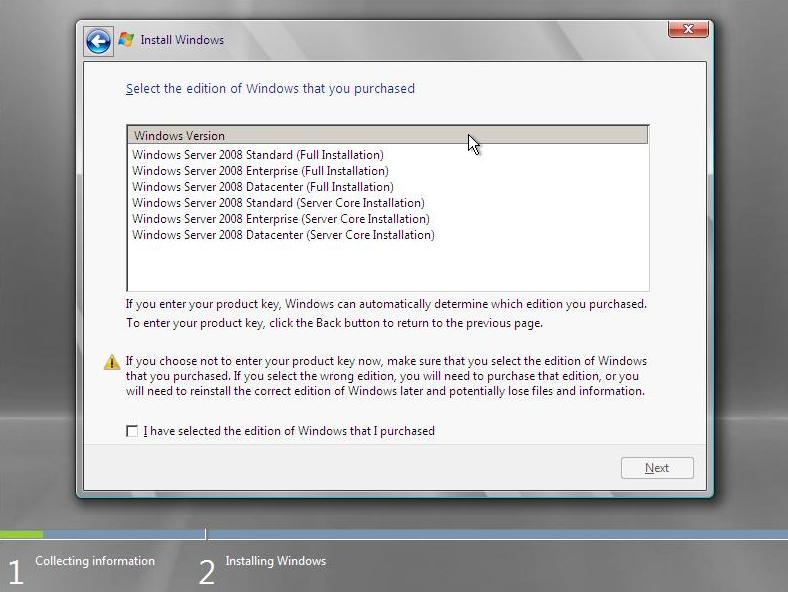
5. Choose the correct edition of windows that corresponds to your product license. Click Next.
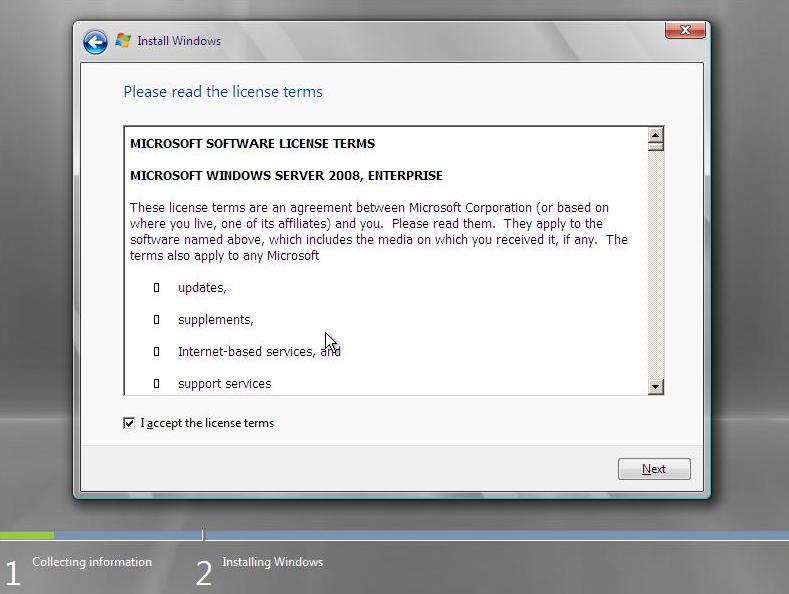
6. Read and Accept the license term. Tick "I accept the license terms" and Click Next.
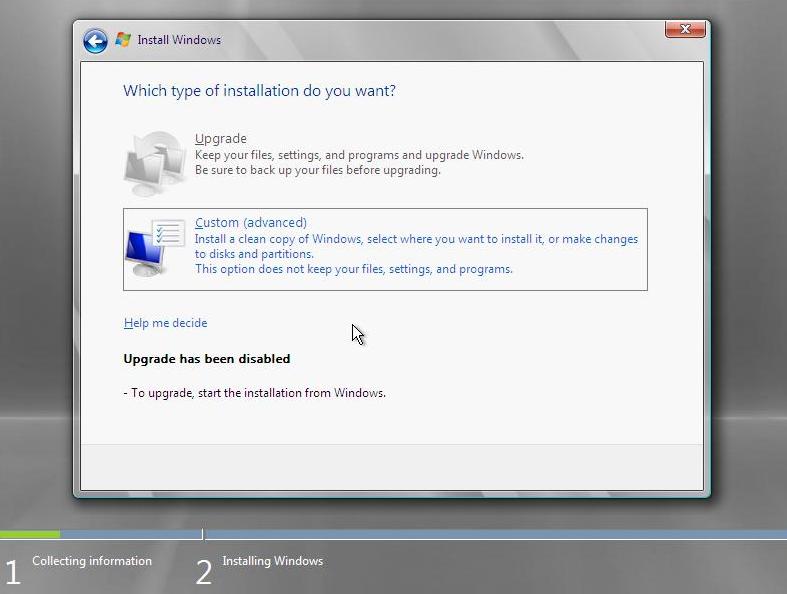
7. This is a fresh install so choose "Custom (advanced)".
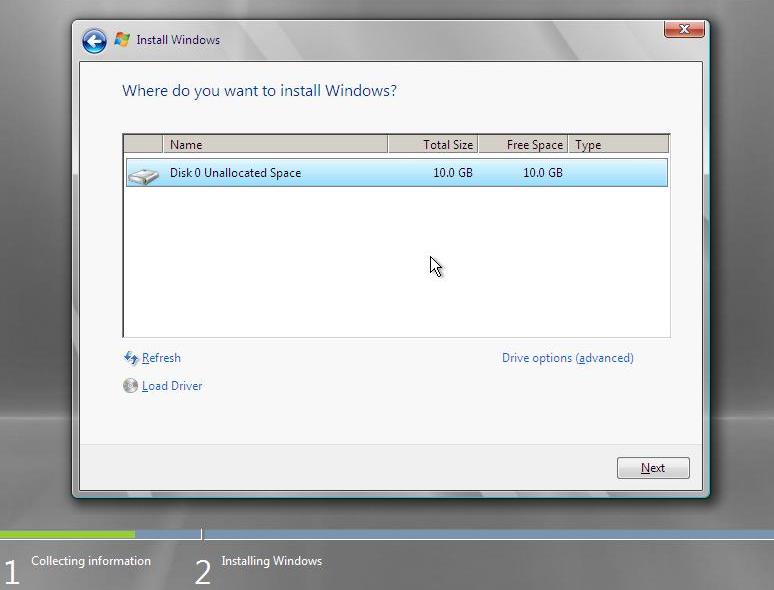
8. Select the disk to install Windows onto. Click Next.
9. Windows will start to install, it will restart serveral times while it does this.
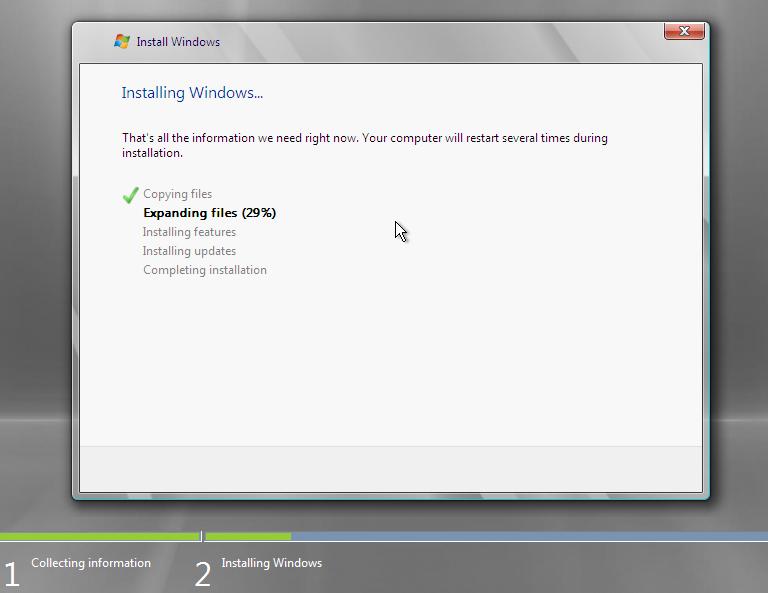
10. The installation will complete.
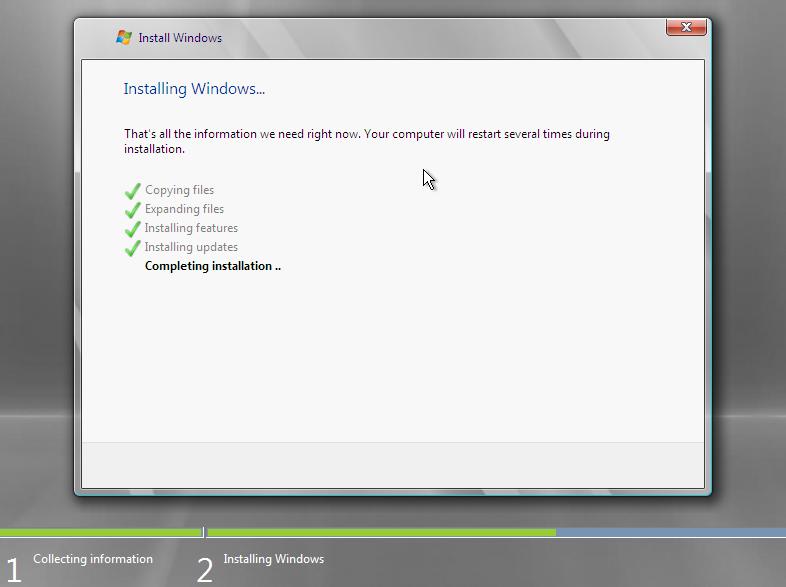
11. Before you can login a password needs to be set. Click Ok.
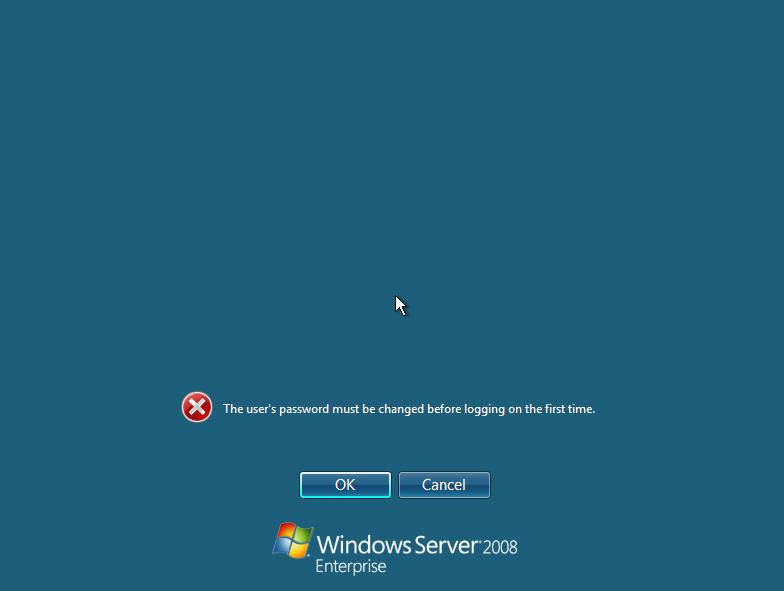
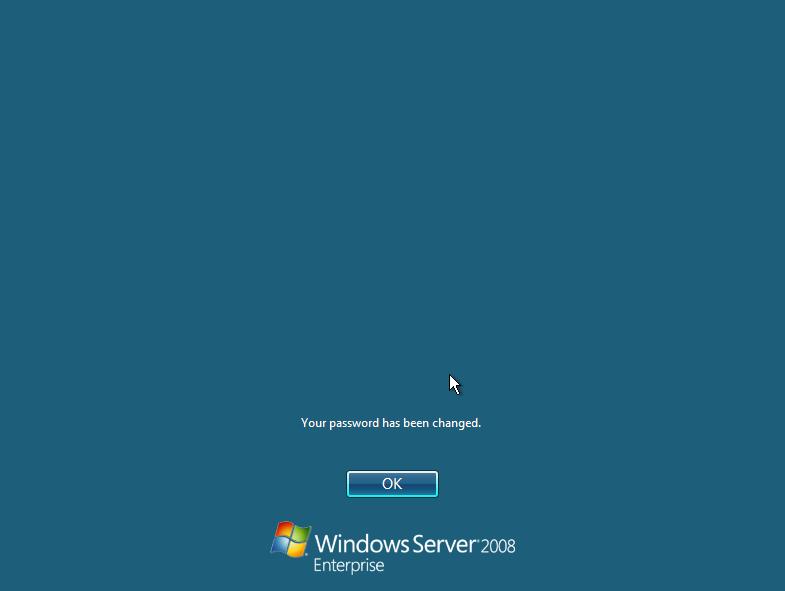
12. Enter a strong password and confirm it by entering again. Press Enter.
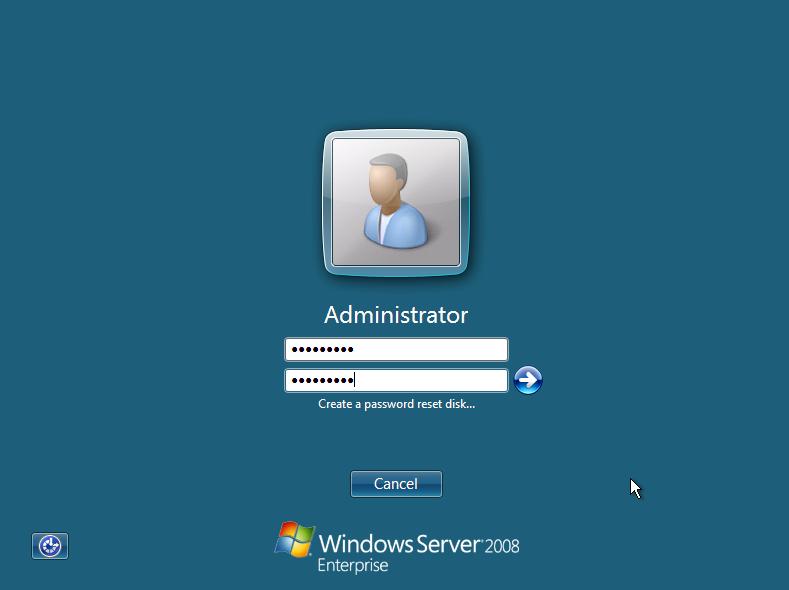
13. The password was set. Press Ok to login. Thats everything now complete.
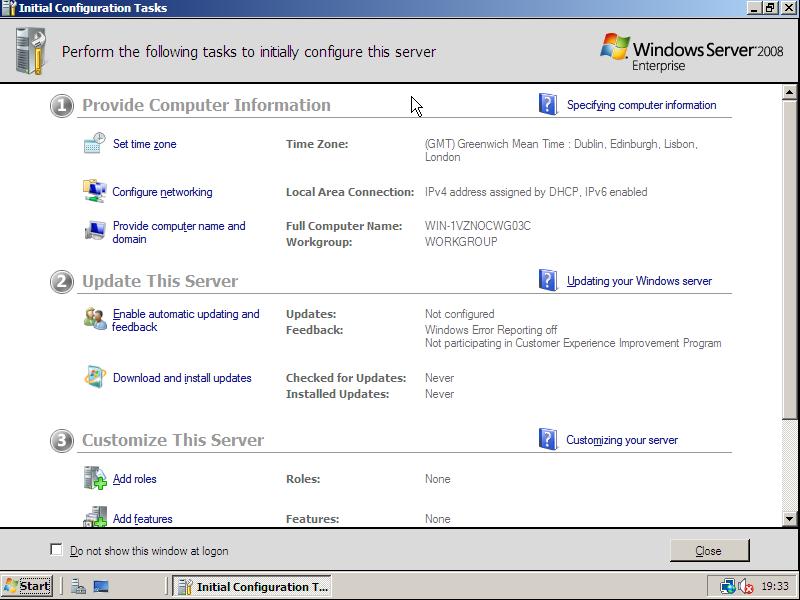
The "Initial Configuration Tasks" console will be displayed to configure networking, computer name etc.
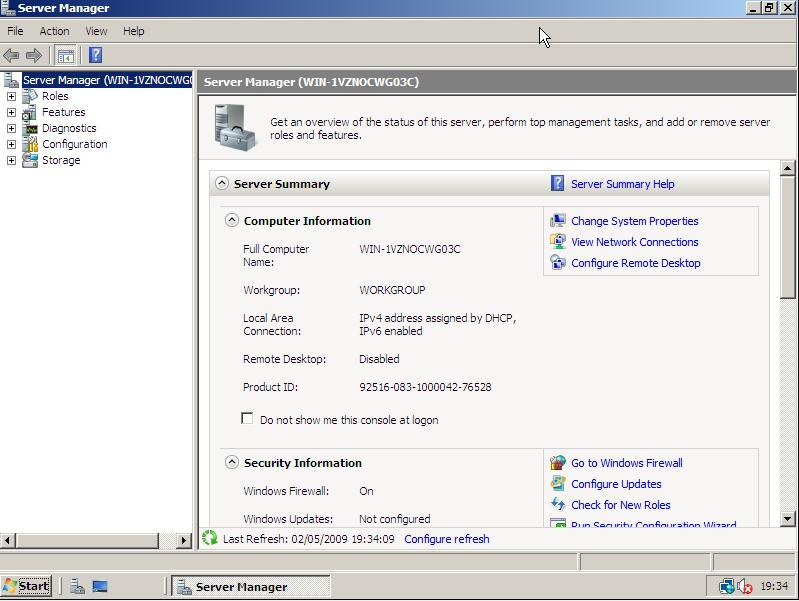
The "Server Manager" MMC, new to Windows Server 2008 will be displayed.
This is what is used to add Roles and Features.
Share this blog post on social media:
Tweet


Latest Blog Posts
- vSphere 7 U1 - Part 3 - Creating a Datacenter, HA/DRS Cluster and Adding a Host
- vSphere 7 U1 - Part 2 - Deploying vCenter 7.0 U1 VCSA
- vSphere 7 U1 - Part 1 - Installing ESXi 7.0 U1
- Veeam CBT Data is Invalid - Reset CBT Without Powering Off VM
- View Administrator Blank Error Dialog/Window After Upgrade