So you have got a DHCP Server role installed, but you need to configure it before you can start leasing IP addresses.
As well as just setting the clients IP address, it can be configured to set the default gateway (router), DNS, WINS etc.
Open the DHCP Server MMC console.
"Start --> Control Panel --> Administrative Tools --> DHCP".
Expand the DHCP Server and Right click IPv4.
Click "New Scope...".
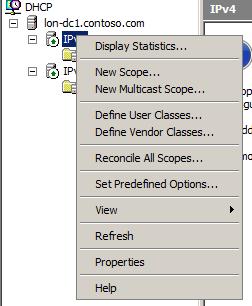
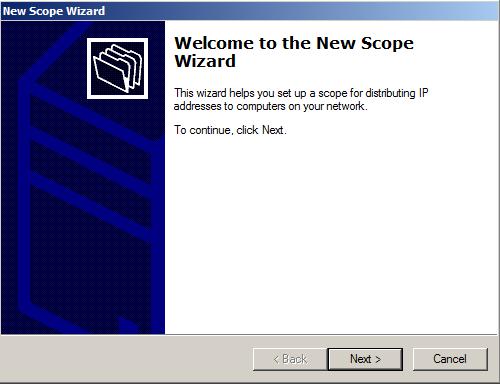
The new scope wizard opens.
Click Next.
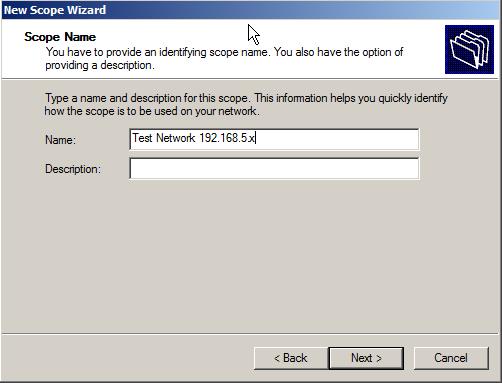
Enter a name and description for the scope.
Click Next.
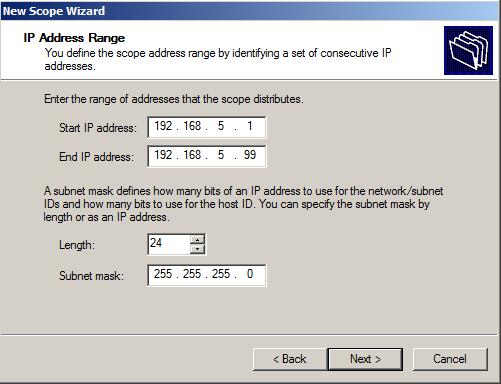
Enter the IP Address range for the scope. (This is the range of IP addresses the DHCP server will distribute).
Enter the subnet mask.
Click Next.
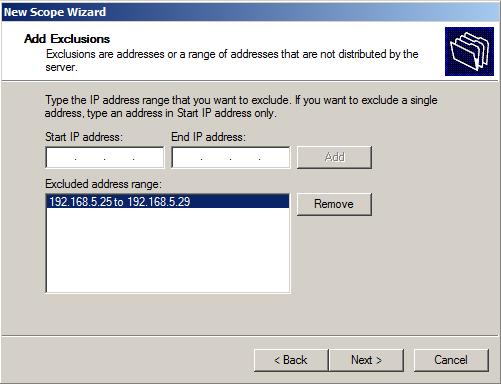
If you need to exlude any IP addresses in the given range (such as a manually set printer to save conflicts) Enter them here.
Click Next.
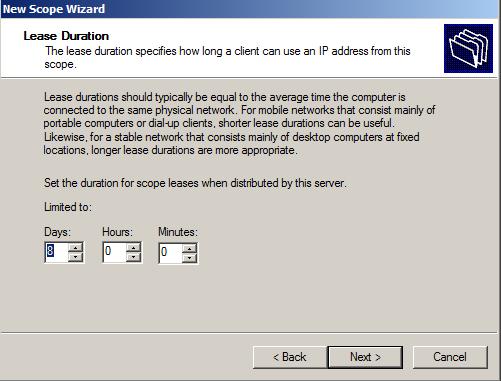
Choose the length of the lease (8 Days default - Client will request after 4 days).
Click Next.
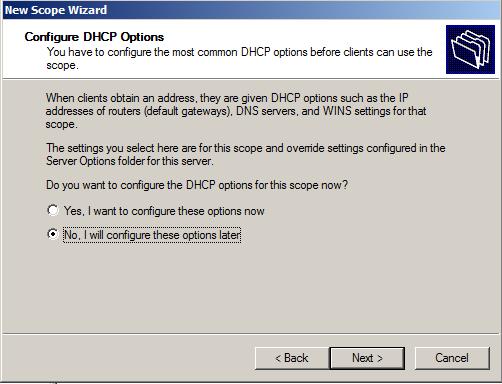
DHCP options will be configured later.
Click No and Next.
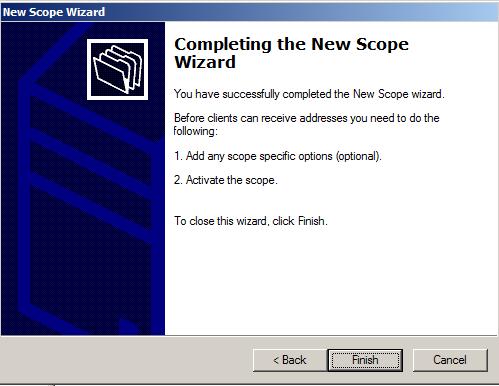
Click Finish.
Before the new scope will work it needs to be activated (noted by the red down arrow).
Right click the scope and click "Activate".
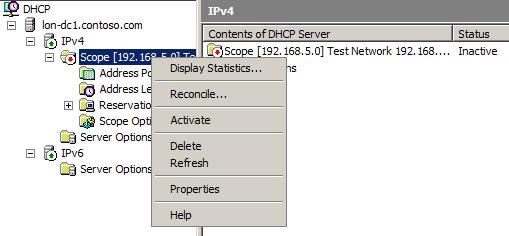
The scope will now have a green down arrow, indicating it is active.

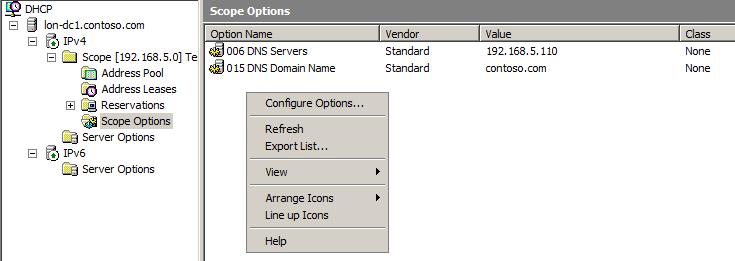
Under the scope, Right click "Scope Options" and select "Configure Options".
Note: This is different to "Server Options" which configures the default settings for all scopes in the same way.
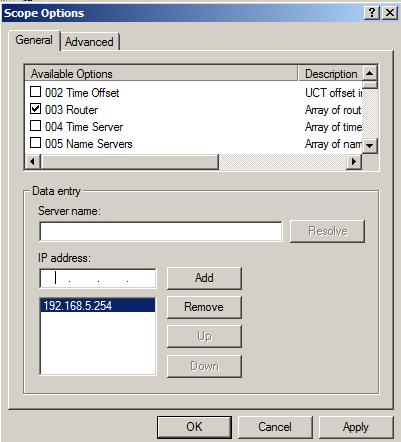
Select the required options and set the values.
In this case "003 Router" and enter an IP Address of the default gateway.
Click OK.
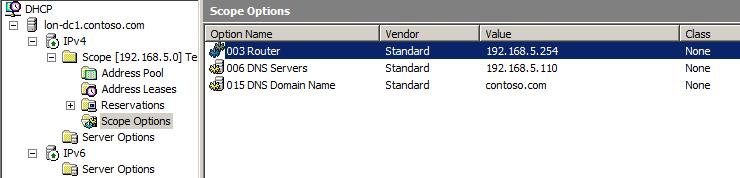
The newly configure scope options can now been seen.
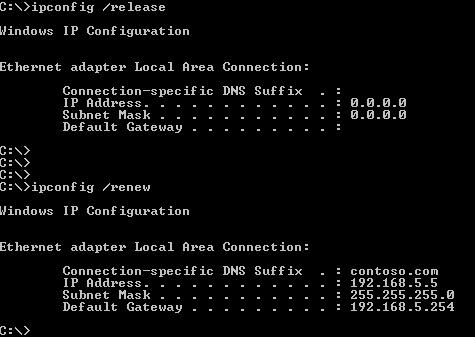
On a client connected to the same network as the DHCP server interface leasing IP address, request a lease.
This will issue an IP address, subnet mask, default gateway and DNS suffix to the DHCP client.
Share this blog post on social media:
Tweet


Latest Blog Posts
- vSphere 7 U1 - Part 3 - Creating a Datacenter, HA/DRS Cluster and Adding a Host
- vSphere 7 U1 - Part 2 - Deploying vCenter 7.0 U1 VCSA
- vSphere 7 U1 - Part 1 - Installing ESXi 7.0 U1
- Veeam CBT Data is Invalid - Reset CBT Without Powering Off VM
- View Administrator Blank Error Dialog/Window After Upgrade