VMware vCenter Converter quickly, easily and affordably converts Microsoft Windows and Linux physical machines and third party image formats to VMware virtual machines. It also converts virtual machines between VMware platforms.
VMware vCenter Converter is available in two different versions:
Standalone Converter
Converter integrated with VMware vCenter Server
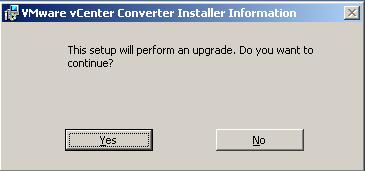
Here the integrated VMware vCenter Converter Server is being upgraded. The process for the install and upgrade is the same, but for the upgrade there is an additional prompt to let you know its being upgraded.
Download VMware vSphere vCenter 4 from the VMware download area.
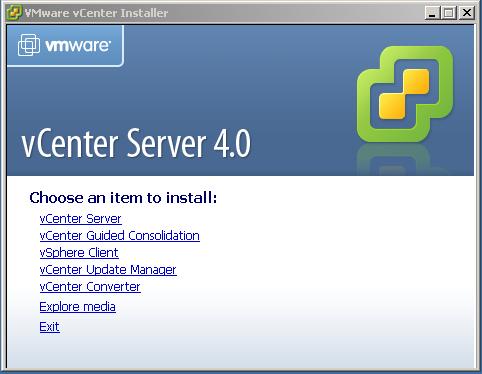
Insert the DVD (it will autorun) or run the exe, from the extracted ZIP file.
Click "vCenter Converter.
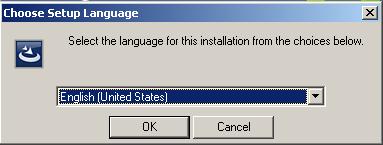
Choose the language. Click OK.
If upgrading confirm you want to continue by clicking Yes.
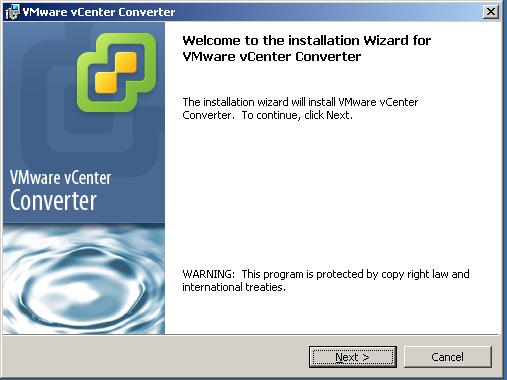
Click Next.
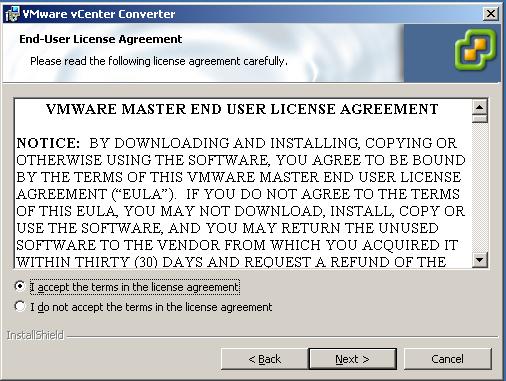
Read and accept the license. Click Next.
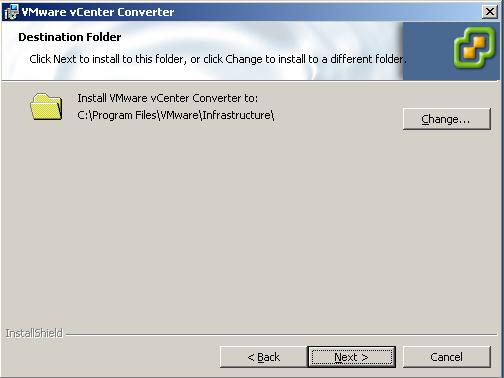
Enter the installation path. Click Next.
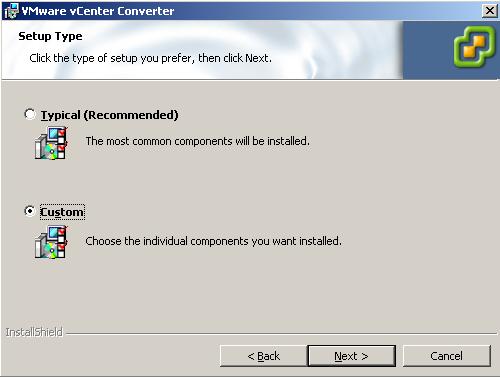
Choose the typical/custom installation. Click Next.
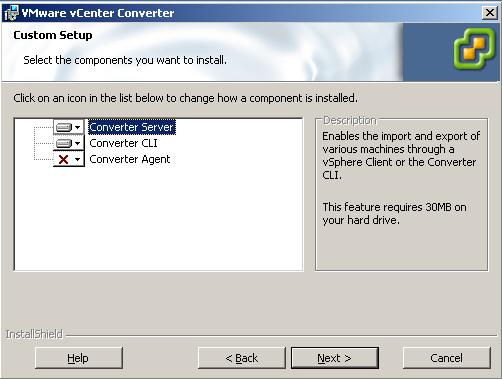
If custom installation was choosen, notice the converter agent is not installed but the converter server and CLI are.
We do not need the converter agent installing on this server. Click Next.
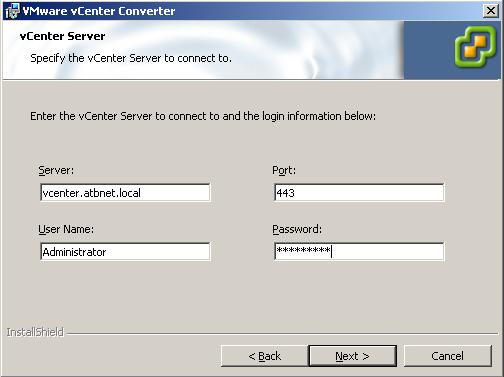
Enter the vCenter Server details. Click Next.
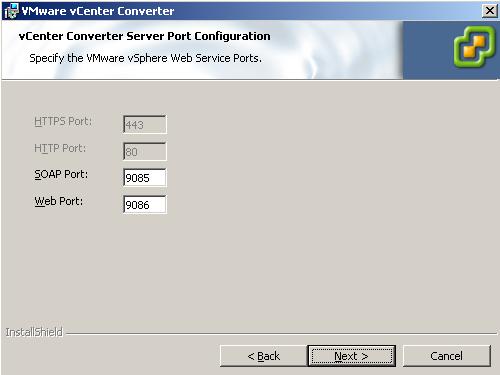
Confirm or modify the ports to be used. Click Next.
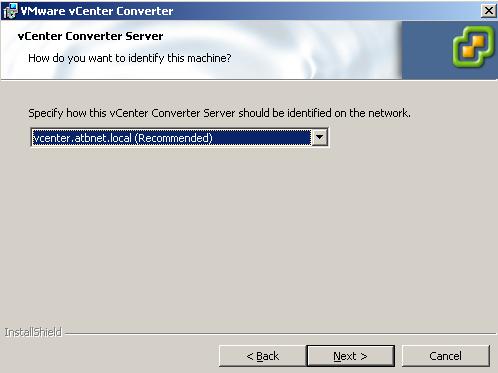
Choose the vCenter address. Click Next.
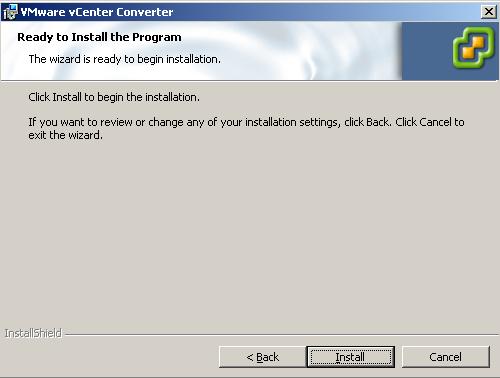
Click Next to install.
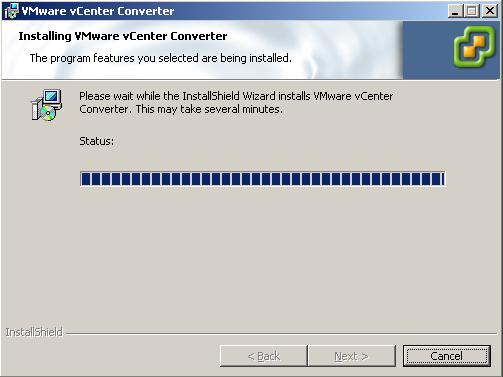
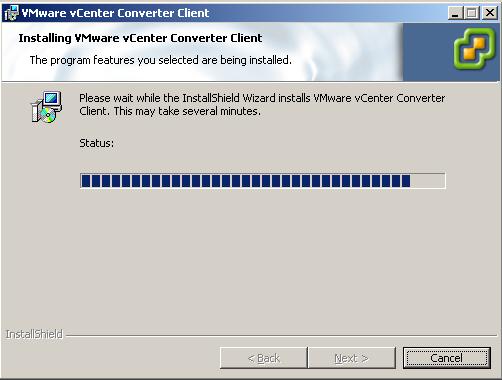
Converter is installed, wait for it to complete.
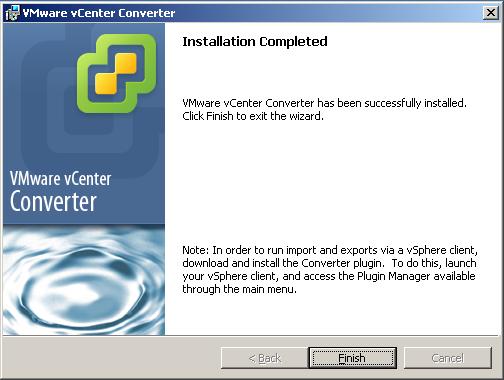
Installation is complete. Click Finish.
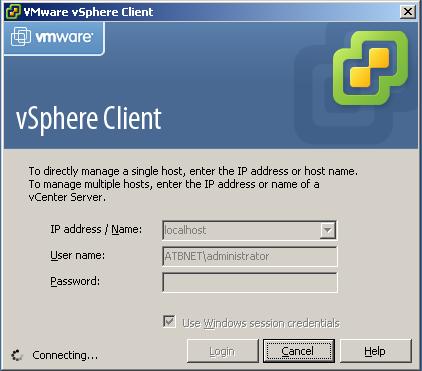
Start the vSphere client and connect to the vCenter Server.
Go to the vCenter plugin manager.
Right click "VMware Converter Enterprise" plugin and install the client plugin.
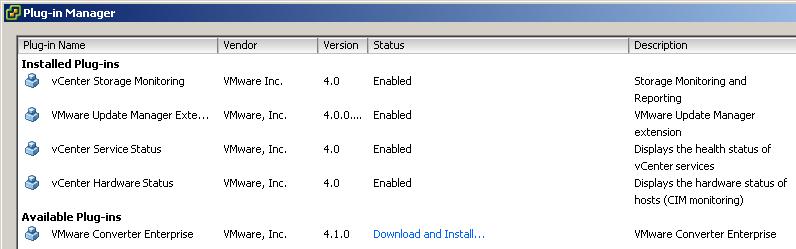
The client plugin will install.
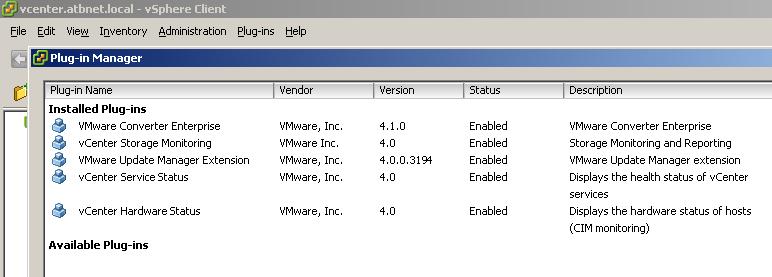
Confirm the plugin shows under "Installed Plug-ins".
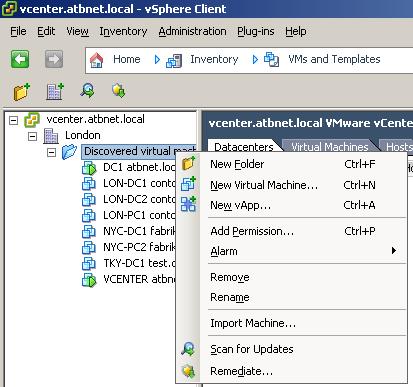
Choose the "Import Machine..." option in the inventory to use Converter to P2V an existing server.
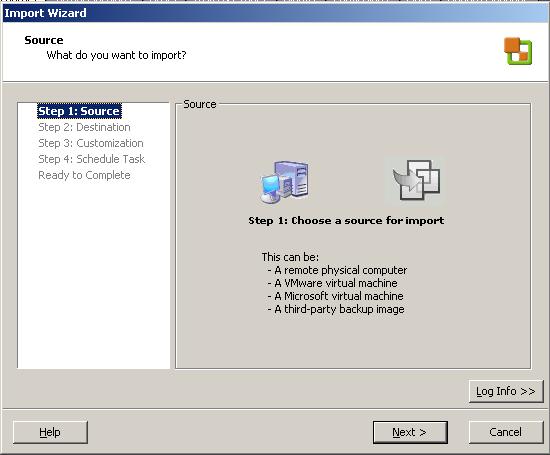
Use the Converter Import Wizard to convert the server to a virtual machine.
Share this blog post on social media:
Tweet


Latest Blog Posts
- vSphere 7 U1 - Part 3 - Creating a Datacenter, HA/DRS Cluster and Adding a Host
- vSphere 7 U1 - Part 2 - Deploying vCenter 7.0 U1 VCSA
- vSphere 7 U1 - Part 1 - Installing ESXi 7.0 U1
- Veeam CBT Data is Invalid - Reset CBT Without Powering Off VM
- View Administrator Blank Error Dialog/Window After Upgrade