For HA, DRS, vMotion and Storage vMotion to work you need to use shared storage, in this case an iSCSI SAN.
I will show you how to configure ESX to connect to and use iSCSI SAN storage in its most basic way.
See Configuring iSCSI Storage (Advanced with CHAP) if you will be using CHAP authentication.
1. Firstly you need to ensure you have a VMkernel Port.
If you do not have a "VMkernel Port" on a vSwitch on your ESX server you will need to Create a VMkernel Port.
By default the installation of ESX only creates a "Virtual Machine" and "Service Console" port group.
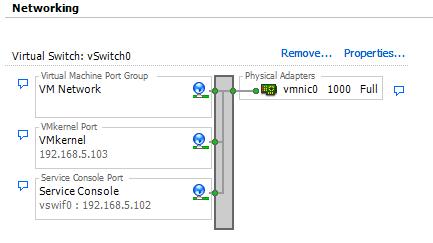
2. Now the storage adaptor needs configuring. This is a software iSCSI adaptor but the method is the same. (Note that using a software ISCSI adaptor adds an extra overhead to the server).
3. In the "Storage Adaptors" section click on the iSCSI adaptor (e.g. iSCSI Software Adaptor) you want to configure, then click "Properties".
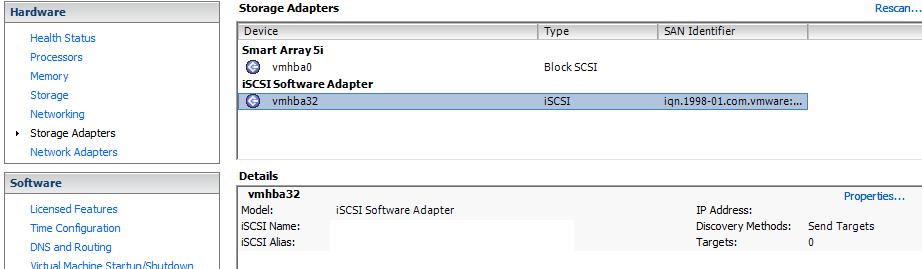
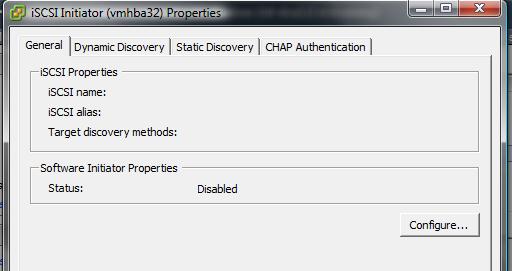
4. Click "Configure" in the iSCSI initiator properties dialog.
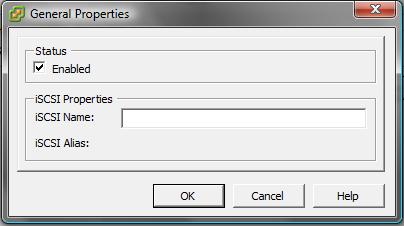
5. In the status section tick "Enabled" and click Ok.
6. The iSCSI initiator name and alias will be created and the status will show "enabled".
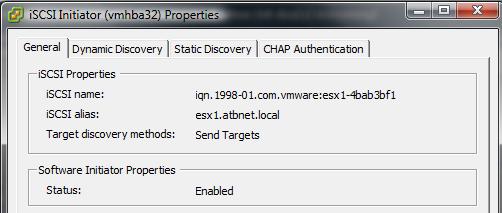
7. When using send targets click on the "Dynamic Discovery" tab.
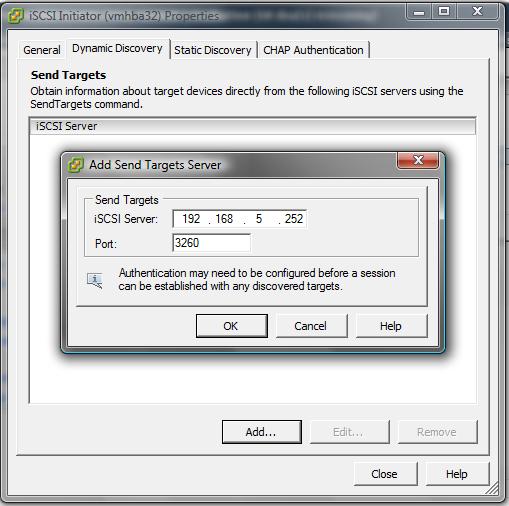
8. Click "Add". Enter the IP of the iSCSI server and the port for discovery.
9. Click Ok and then Close.
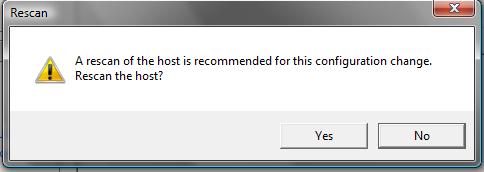
10. You will be asked to rescan the host. Click Yes.
11. You will now see the iSCSI adaptor settings and any LUNs you have configured for this host on your SAN.
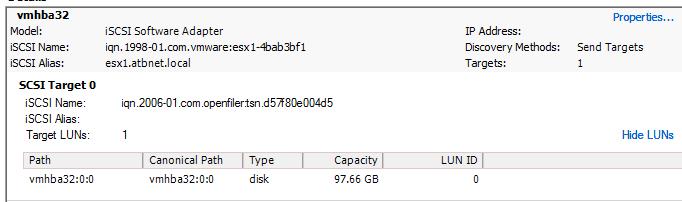
12. You can now use these as VMFS datastores (see Creating a VMFS Datastore) or an RDM (see Adding a raw device mapping (RDM) to a virtual machine).
Share this blog post on social media:
Tweet


Latest Blog Posts
- vSphere 7 U1 - Part 3 - Creating a Datacenter, HA/DRS Cluster and Adding a Host
- vSphere 7 U1 - Part 2 - Deploying vCenter 7.0 U1 VCSA
- vSphere 7 U1 - Part 1 - Installing ESXi 7.0 U1
- Veeam CBT Data is Invalid - Reset CBT Without Powering Off VM
- View Administrator Blank Error Dialog/Window After Upgrade