Home Storage Dell EqualLogic PS
SAN HeadQuarters - Part 1 Installing Print E-mail
SAN HeadQuarters is a very useful tool for EqualLogic storage administrators. It can provide detailed realtime and historical performance statistics of arrays. It also provides notifications of issues for analysis and problem solving.
What Dell say...

SAN HeadQuarters (SAN HQ) provides consolidated performance and robust event monitoring across multiple virtualized EqualLogic SAN groups. It gathers and formats performance data and other vital group information for easy viewing and quick analysis of multiple aspects of group performance. With SAN HQ, you have the ability to centrally monitor alerts, get historical performance reporting, and perform trend analysis for capacity planning and troubleshoot.


1. SAN HeadQuarters is included free with all EqualLogic arrays.

You need to sign up for an EqualLogic support account and register the Service Tag from your EqualLogic arrays.

https://www.equallogic.com/secure/login.aspx

Once you have done this you can download SAN HeadQuarters 2.0.


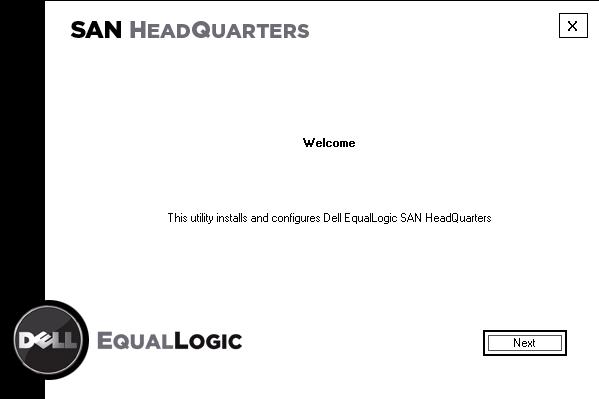
2. Run the installer for SAN HeadQuarters and Click Next.
 
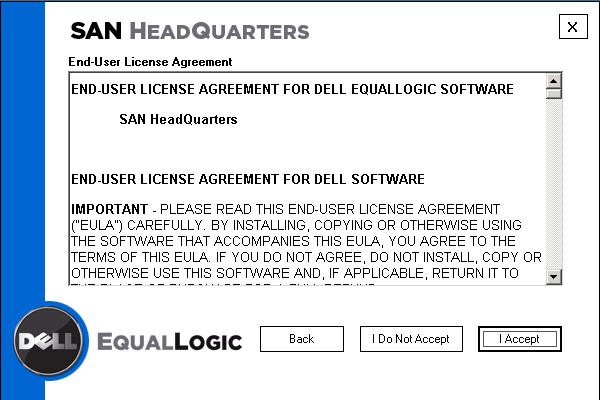
3. Read the license agreement and Click Next.
 
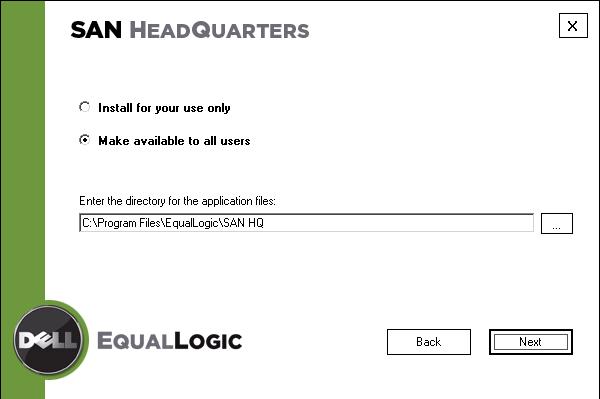
4. Select "Make available to all users".
Enter the installation directory.
Click Next.
 
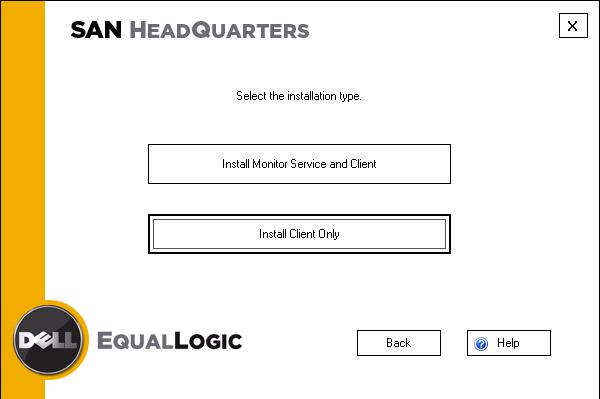
5. Click "Install Monitor Service and Client".
 
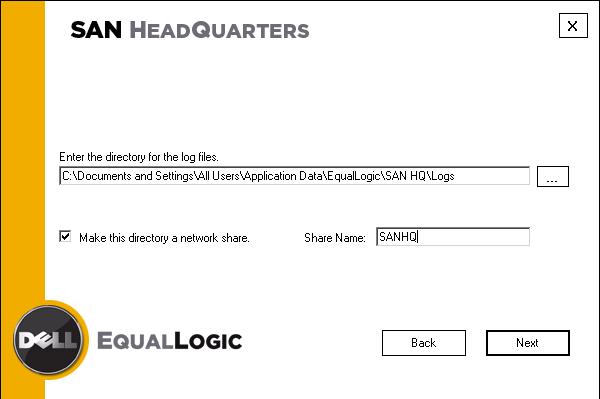
6. Enter the Log File Directory.
Choose to share out the Log Directory (required for remote client access).
Click Next.
 
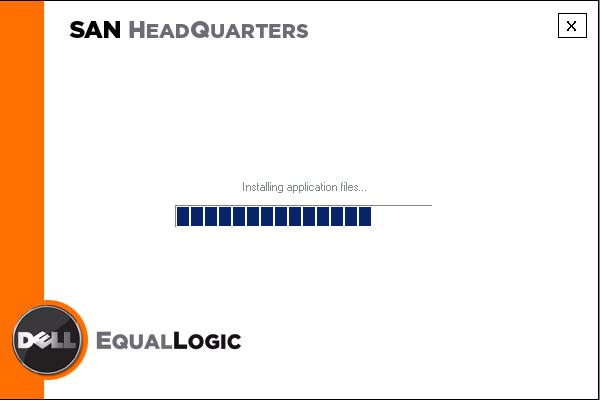
7. SAN HQ starts to install.
 
 
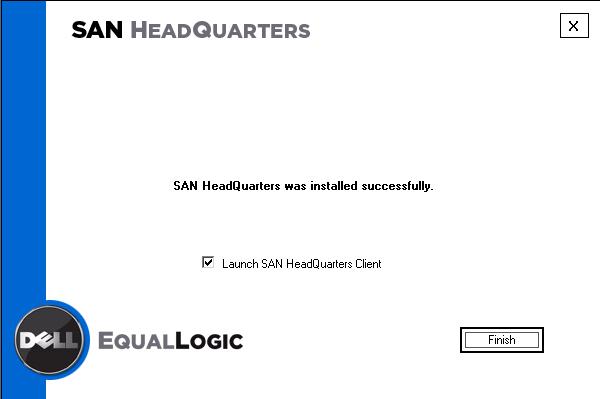
8. Once the installation is complete you can choose to Launch the client.
Click Finish.
 
Now SAN HeadQuarters is installed, it needs configuring to connect to EqualLogic groups for monitoring and reporting. This is covered in part 2 - configuring.


DISCLAIMER: All advice, tips, guides and other information on this website is provided as-is with no warranty or guarantee. While most information is correct to the best of my knowledge, I am not reponsible for any issues that may arise in using the information, and you do so at your own risk. As always before doing anything; check, double check, test and always make a backup.


Help VMadmin

All resources on this site are provided absolutley free. However it takes time and money to keep the site running. If any information has been helpful to you or your company, and you wish to make a donation to help keep VMadmin.co.uk running you can do so via paypal, and it would be much appreciated.

Click to donate to VMadmin.co.uk via paypal.