Creating a volume or also generally know as a LUN and assigning contolled access is quick and easy.
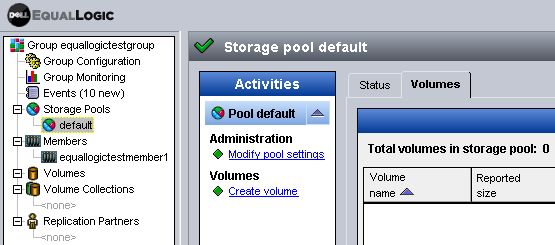
3. Select the storage pool in which you want to create the volume.
4. Once the storage pool is highlighted, Click "Create Volume" within "Activities".
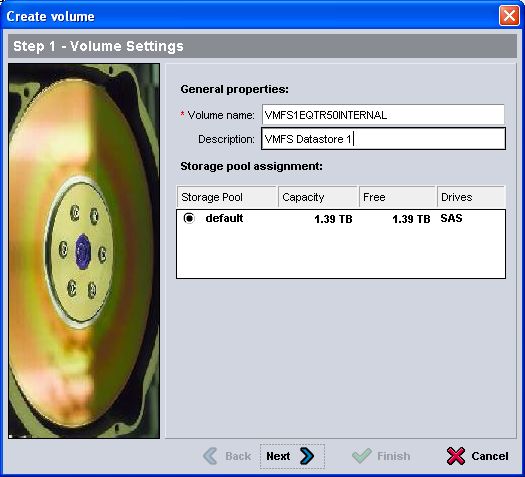
5. The Create Volume wizard will appear.
Enter a volume name, and optional description. Click Next.
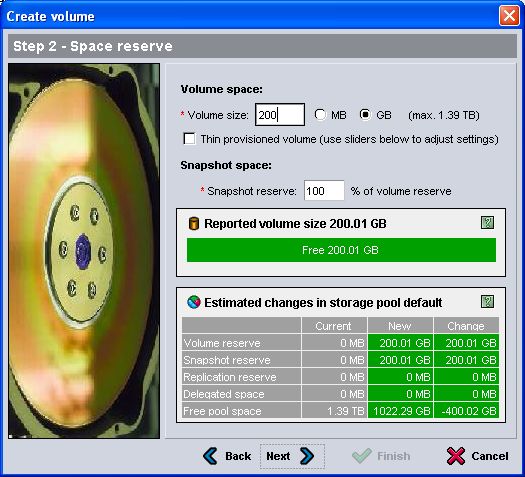
6. Now enter the required size of the volume.
Optionally this can be created and a thin provisioned volume.
Additionally the amount of space reserved for snapshots of this volume can be configured (default is 100%).
Click Next.
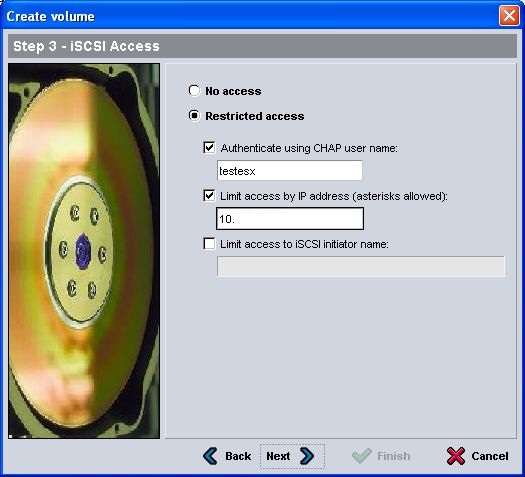
7. Enter the required details to allow access to the volume.
Ideally only a correct combination of all three - chap username, IP and initiator will allow access.
Click Next.
8. Review the summary of the volume settings before creating.
If everything is correct, Click Finish.
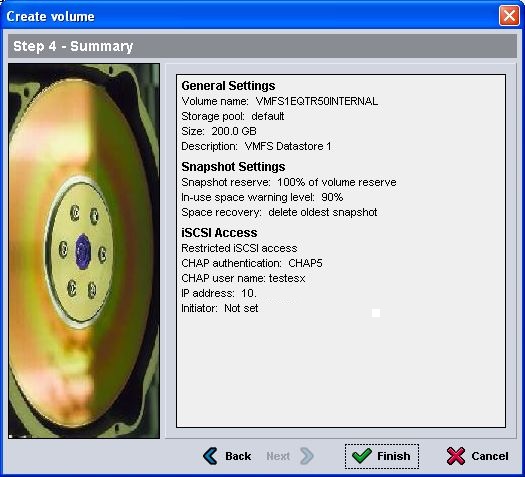
9. The volume/LUN is instantly created and available for use on allowed hosts.
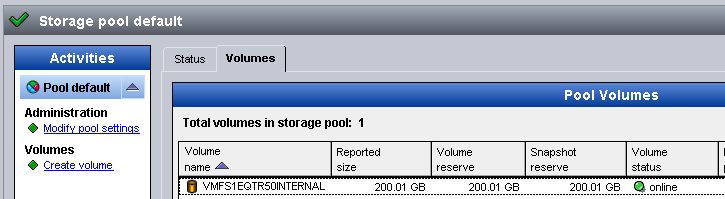
See Changing restricted access to a Volume on an EqualLogic PS for adding additional hosts, chap usernames and changing details for volumes.
Share this blog post on social media:
Tweet


Latest Blog Posts
- vSphere 7 U1 - Part 3 - Creating a Datacenter, HA/DRS Cluster and Adding a Host
- vSphere 7 U1 - Part 2 - Deploying vCenter 7.0 U1 VCSA
- vSphere 7 U1 - Part 1 - Installing ESXi 7.0 U1
- Veeam CBT Data is Invalid - Reset CBT Without Powering Off VM
- View Administrator Blank Error Dialog/Window After Upgrade